

Students
Create compact study sheets
Place several reference pages on one sheet and check that equations and small labels remain readable.
Arrange 2, 4, 6, 8, or 16 PDF pages on one sheet for compact handouts and printing.
Use the page controls to inspect your document.
Save your result or return to adjust the settings.
Upload one PDF from your device.
Review the available settings, then start processing.
Save the result and check it before sharing.
Arrange 2, 4, 6, 8, or 16 PDF pages on one sheet for compact handouts and printing. Content fits proportionally inside each sheet. Preview updates when you change settings. Interactive forms and annotations should be flattened first.
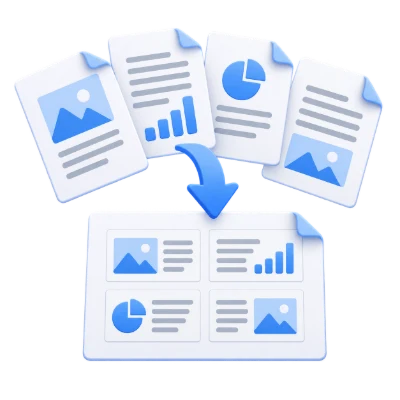
Place several reference pages on one sheet and check that equations and small labels remain readable.
Choose a pages-per-sheet layout for lesson materials and preview the order before downloading.
Create a 2-up or 4-up PDF, then print it at one output page per sheet to avoid shrinking it twice.
Choose 2, 4, 6, 8 or 16 source pages per output sheet.
Select the paper size and orientation, then choose a grid. Each source page is proportionally scaled into a cell. The last sheet can contain empty cells when the page count does not fill a complete grid. The default places six pages per sheet; inspect small text before selecting a denser arrangement.
Arrange pages across rows or down columns with space between cells.
Row order fills each row before moving down. Column order fills a column before moving across. Gap settings control the space between adjacent page cells. The tool makes a reading or printing layout; it does not automatically impose a folded booklet or arrange printer duplex settings.
The operation works with PDF pages rather than screenshots.
Text and vector artwork remain in PDF form where supported. The original file on your device is not overwritten. Interactive forms, annotations, links and document-level navigation can behave differently in a newly assembled document, so check the generated PDF before sharing it. Page rearrangement is not redaction of information inside retained pages.
Preview the result before downloading and sharing it.
Select Start when the settings are ready. On the result screen, Preview opens the generated PDF and Download saves a separate copy. Back returns to the current workspace; Start over clears it for a new file. Review small text, page edges and page order in the finished copy. A new PDF does not preserve the validity of an existing digital signature.
Open one PDF up to 300 MB and 750 source pages. Protected files need an unlocked copy unless this tool explicitly offers password entry. Large or complex pages can require more memory or reach processing limits even when the file is within these limits.
Processing takes place on your device without uploading the document. Download your result before closing the page; keep the original separately.
Know what to expect before you start.
On your deviceN-Up places several pages on a sheet for compact reading or printing. It does not automatically arrange front and back signatures for folding and binding a booklet.
Choose 2, 4, 6, 8 or 16 source pages per output sheet; the default is 6. Each page is proportionally scaled into its cell on the chosen paper. The last sheet can contain empty cells. Use the visual preview to check small text before choosing a denser grid.
Row order fills each row before moving down. Column order fills a column before moving across. Gap settings control the space between adjacent page cells. The tool makes a reading or printing layout; it does not automatically impose a folded booklet or arrange printer duplex settings.
Open one PDF up to 300 MB and 750 source pages. Protected files need an unlocked copy unless this tool explicitly offers password entry. Large or complex pages can require more memory or reach processing limits even when the file is within these limits.
Document processing and PDF generation run in your browser on your device. This tool does not upload the document for processing. Save your result before closing or reloading the page; the original file on your device is unchanged.