Document scanning teams
Separate batch scans
Use barcode cover pages to divide a combined scan into individual document packets.
Find the codes. Review the sections. Separate your batch.
Start also scans the document if you have not clicked Find barcodes.
Extract the ZIP to open your numbered PDF sections.
Choose a scanned or digital PDF, or try the sample with three barcode-marked sections.
Click Find barcodes. Review the highlighted pages, filter by value if needed, and choose Before or After.
Click Start to create a ZIP with numbered PDFs. Every original page is kept.
Split PDF by Barcode finds readable codes on scanned or digital pages and uses matching pages to divide one file into separate PDF sections. Review the markers locally, then download the numbered PDFs together in a ZIP.
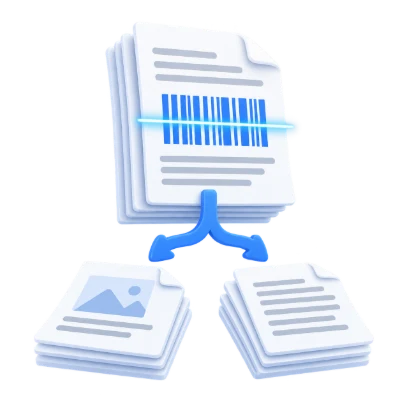
Use barcode cover pages to divide a combined scan into individual document packets.
Match a reference value on delivery or consignment cover sheets.
Keep the supporting pages after each barcode-marked case cover together.
Read barcodes from scanned pages as well as ordinary PDFs.
Supported families include Code 128, Code 39, Code 93, Codabar, EAN/UPC, ITF, DataBar, QR, Data Matrix, PDF417 and Aztec. Choose 1D barcodes, 2D codes or all supported types.
Pages are rendered locally at up to 200 dpi for detection, with a bounded image size. Rotated and some inverted codes can be read. Tiny, blurred, obscured or damaged codes may be missed; detection is not guaranteed.
Filter values and search areas to avoid unwanted splits.
Any detected value is the default. Value contains and Value equals compare text without letter case differences. Arabic text inside a correctly encoded QR code can also be matched. This is literal text matching, not a regular expression.
Header and Footer accept codes whose center lies in the top or bottom quarter of the page. Filtering already detected values updates the sections immediately without another scan.
Keep each marker page with the section it belongs to.
Before starts a new section on each matching page. After ends a section there. Multiple matching codes on one page create just one boundary. Repeated values on different pages still create boundaries; this tool does not group by unique value.
All pages are retained, including those before the first marker and after the last. Consecutive markers may create single-page sections. No empty PDFs are generated.
See matching pages, decoded values and precise page ranges.
Find barcodes scans the document when you ask it to. The left sidebar tints matching pages yellow, and the current preview outlines detected codes. Read their values in Settings and click a section to preview its first page.
Start scans automatically if needed, then downloads a ZIP of numbered PDF sections. With no matching codes, the ZIP contains one PDF holding every page. Back keeps your settings and detections.
Output pages are copied from the PDF rather than from the detection images.
Text, images, page sizes and vector graphics remain in the output. Document-level bookmarks, interactive forms and links crossing section boundaries are not guaranteed to work. Changing a signed PDF invalidates its digital signature.
Detection and export stay in the browser. Open one PDF within the upload limits. The reader accepts fewer than 100 detected codes per page and up to 5,000 across the document; files exceeding these safeguards need to be split first.
Open one PDF up to 100 MB and 750 pages. Additional output, memory and processing limits can apply to complex documents.
Processing takes place on your device without uploading the document. Download your result before closing the page; keep the original separately.
Know what to expect before you start.
Private processingYes. The tool reads visible barcodes from page images, so a selectable text layer is not required. The barcode must be clear enough to decode.
Yes. QR codes and common 1D and 2D barcode families are supported. You can filter the decoded value, including correctly encoded Arabic text.
No. Before keeps the marker with the following section; After keeps it with the preceding section. Every page is retained.
The ZIP contains one PDF with all pages. Change the value filter or area, or try a clearer source if a code was not detected.
Yes. Every matching page is a boundary even if its value appeared earlier. Several matches on the same page create only one boundary.
No. Images are used only to detect codes. The output copies the original PDF page content, preserving its text and graphics.
Files remain on your device. Open one PDF up to 100 MB and 750 pages. Processing time depends on the document and your device. Password-protected PDFs need to be unlocked first.