Office teams
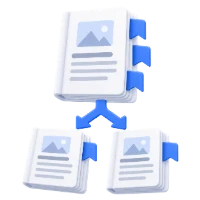
Separate a document batch
Find a recurring heading on each first page, then review the individual page groups.
Find a phrase. Preview the sections. Split your document.
Matching pages mark the boundaries. All pages remain in the output.
Extract the ZIP to open the individual PDFs.
Choose one PDF with selectable text, or try the sample batch.
Enter a phrase, choose where to search, and click Find split points. Review the page ranges.
Click Start and download a ZIP containing the numbered sections.
Split PDF by Text separates one selectable PDF at pages containing your chosen phrase. Use it to organize batches of invoices, reports or letters into individual PDF sections, with no upload.
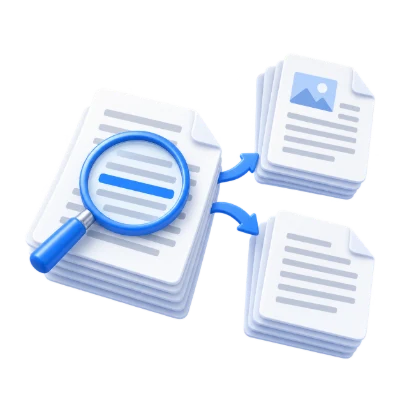
Find a recurring heading on each first page, then review the individual page groups.
Search the invoice heading in the top quarter to avoid splitting at mentions inside the body.
Use a unique chapter marker and choose whether it belongs to the preceding or following section.
Use a recurring heading or marker to separate document sections.
The search matches a literal word or phrase on one text row. It ignores letter case by default and normalizes whitespace and Unicode presentation forms. Turn on Match letter case when capitalization matters. Regular expressions and OCR are not used.
Selectable Arabic and Latin text are supported. Broken character mappings, outlined text or phrases wrapped onto separate rows may not match. Check the highlighted rows and resulting sections.
Search the whole page, just the header or just the footer.
Header searches the top quarter of each page; Footer searches the bottom quarter. These choices help avoid a repeated word in body text creating an unwanted split.
Only Find split points or Start scans the entire document. Opening a PDF shows a preview without starting a whole-document search.
Keep a cover page with what follows, or an end marker with what precedes it.
Before starts a new section at every matching page. After ends a section there. Repeated matches on one page create only one boundary.
Pages before the first marker and after the last marker are retained. Adjacent matching pages can produce single-page sections. No empty PDFs are created.
Click a numbered section to preview its first page.
The sidebar shows all original pages. Matching rows are highlighted on the active preview, and the section list shows the exact page ranges. Change the phrase or search area and run the search again.
Start creates a ZIP of numbered PDFs. If no pages match, the ZIP contains one PDF with every page. Back returns to your settings.
Separate pages without rasterizing text and vector graphics.
Page sizes and visible page content are copied into separate PDFs. This is not a redaction tool, and digital signatures will not remain valid after splitting.
Document-level bookmarks, interactive forms and links crossing section boundaries are not guaranteed to work in the separated files. Review important documents in your PDF viewer.
Open one PDF up to 100 MB and 750 pages. Additional output, memory and processing limits can apply to complex documents.
Processing takes place on your device without uploading the document. Download your result before closing the page; keep the original separately.
Know what to expect before you start.
Private processingYes. Enter the keyword, choose a search area and click Find split points. Review the sections, then click Start to download the ZIP.
Only pages with a searchable text layer can match. Image-only scans need OCR first. An entirely image-only file produces an explanation instead of a misleading split.
They stay in their original order between the split boundaries. No pages are discarded.
Yes. Choose After. Use Before when a marker should start the next section.
Yes, when the PDF contains correctly encoded selectable Arabic text. Diacritics must match the entered phrase. Text spanning separate rows may not match.
The ZIP contains one PDF with all the original pages. Try a shorter phrase or a different search area, and review the matching rows.
No. Search and export run in your browser. Open one PDF up to 100 MB and 750 pages.