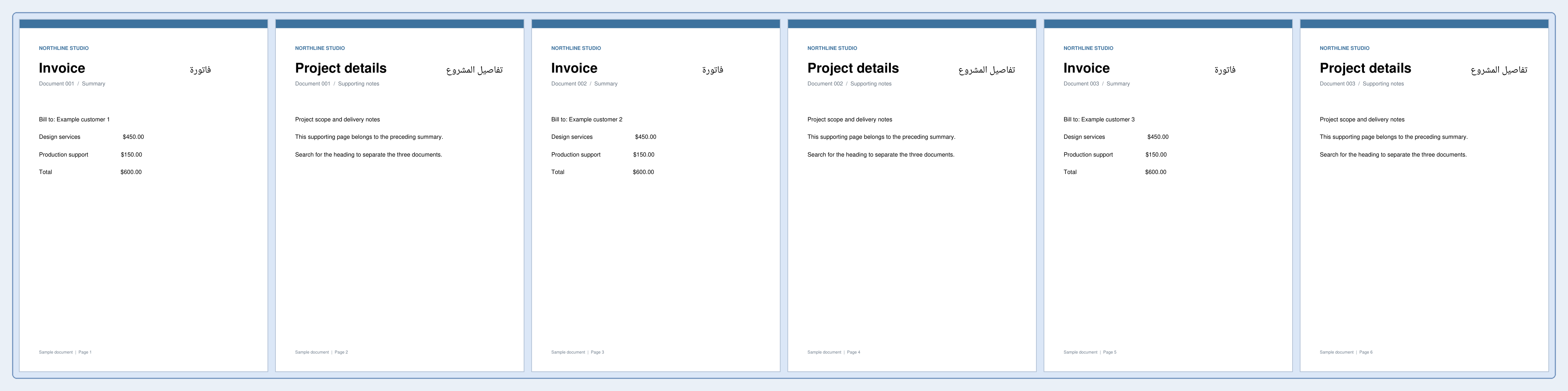
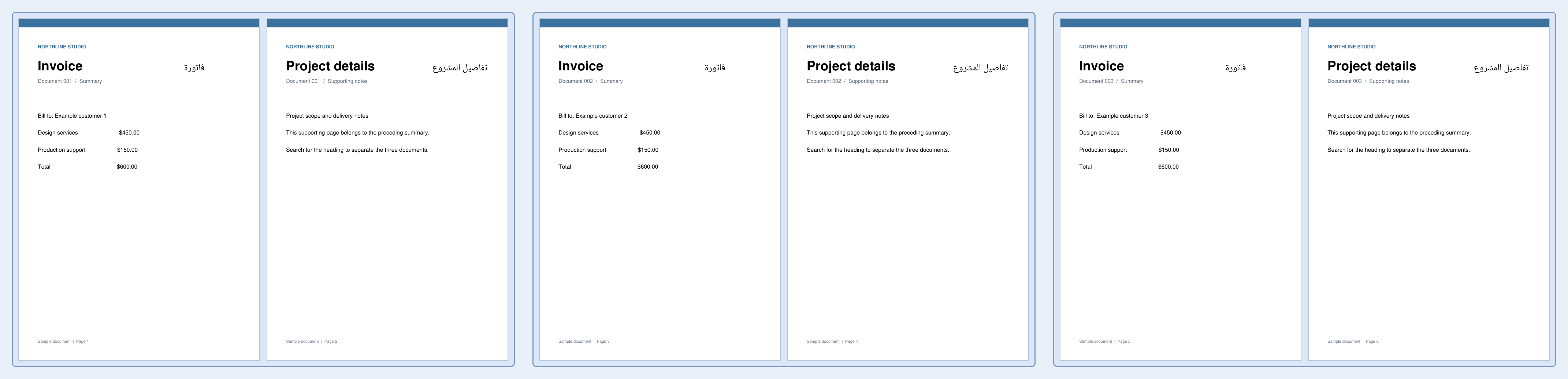

Open Split PDF by Text. Our six-page invoice batch has the word Invoice on pages 1, 3 and 5. Splitting before those matches produces three two-page invoice PDFs.
Load a suitable document
Load a PDF with searchable text. Select a short phrase that marks a real section boundary, rather than a word repeated throughout every page.
Set the rule and review matches
Enter Invoice under Text to find, keep Search in set to the whole page and leave Match letter case off. Choose Before so each matching invoice page starts a new section.
Choose Find split points and review the highlighted matches and proposed ranges. Restrict the search to the header or footer if the same words occur elsewhere. The phrase is matched literally, not as a regular expression.
Download and verify the sections
Choose Start and download the ZIP. Extract it before opening the PDF files. The result contains pages 1–2, 3–4 and 5–6 in three PDFs. Each invoice stays with its supporting notes.
Check the beginning and end of each part so an unexpected match does not separate pages that belong together.
Common questions
What is the difference between Before and After?
Before starts a new section on the matching page; After ends the preceding section on that page. Choose according to whether the marker belongs at the beginning or end of each document.
Can I choose split points manually instead?
Yes. Use Split PDF for explicit page boundaries, or adjust the matching rule here until the proposed ranges match your document.
Try it with your document
Review the result, then save the version you need.