
Use LaTeX Equations to PDF to create a formula for a worksheet, presentation or report. You can type LaTeX directly, edit a visual expression, or begin with a ready-made formula. The studio typesets and exports your equations in the browser.
Choose a starting point
Choose Open equation studio for a blank workspace. Use Open LaTeX to load one local UTF-8 source file, or try the sample to explore an existing expression. Supported source extensions are .tex and .txt.
The view switch offers LaTeX for source editing, Visual for editing rendered notation, and Split for working on the source while watching the export preview. Choose the view that suits your expression. The preview is the result to review before exporting.
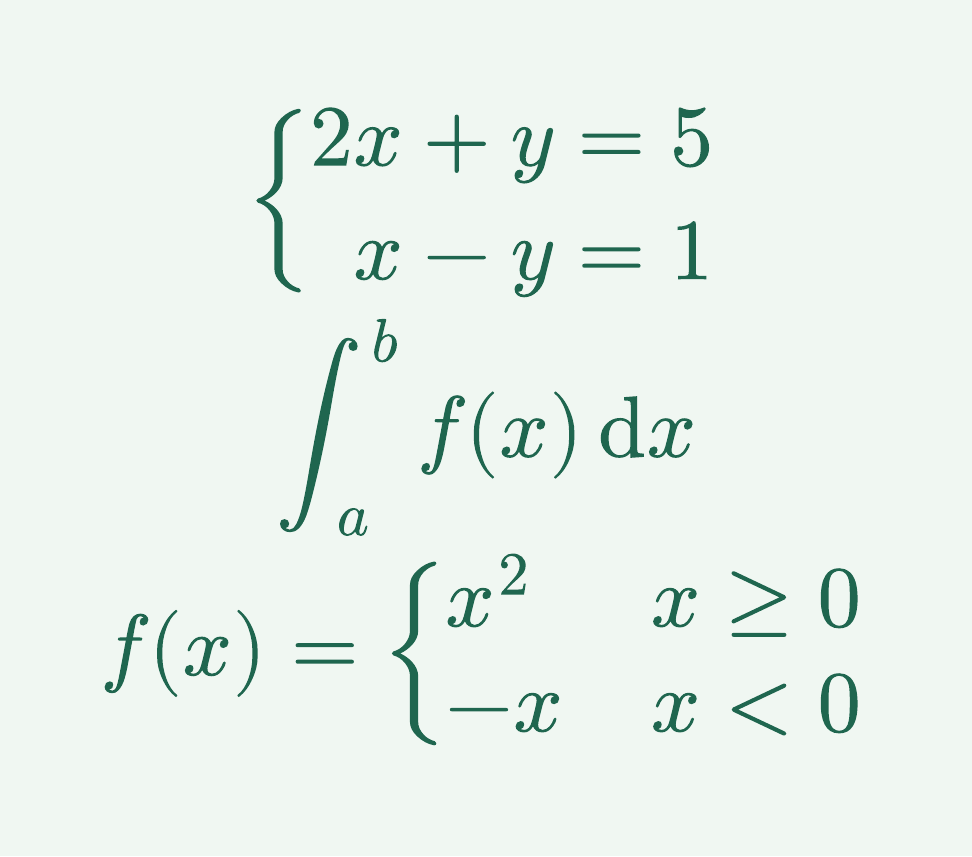
For this example, use Split view and enter a braced system, a definite integral and a piecewise function. These are separate mathematical expressions; they do not need a complete LaTeX document around them.
Insert a formula, then make it yours
Quick Input contains formulas grouped under Math, Physics and Chemistry. Search by name, symbol or command, then select an example to insert it at the cursor. Star useful formulas to keep them in Favorites; Recent provides a shortcut to formulas you have used.
The toolbar groups common constructs such as fractions, integrals, Greek letters and relations. Its visible symbol previews are quick insertion buttons, and the category menu opens more choices. When a template selects a placeholder, type its replacement and press Tab to select the next one. Use Shift + Tab to return to the previous placeholder.
Matrix
Choose rows, columns and brackets, then enter the cells. The builder supports grids up to 12 by 12, identity and zero presets, and pasted spreadsheet cells. An optional divider creates an augmented matrix.
Equation layouts
Choose aligned equations, a braced system, numbered equations or a piecewise function. Fill the expressions in each row and insert the result. Use this when alignment or a shared brace matters.
Reaction
Enter reactants and products, choose an arrow, and add text above or below it. The builder formats chemical notation; it keeps your coefficients as entered and does not balance the reaction.
To revise a recognized matrix, system or reaction, place the source cursor inside it and use Edit this construct. For other expressions, continue in LaTeX or Visual view. If a construct cannot be represented by the visual editor, keep editing its source and check the export preview.
Put separate equations on separate lines
A normal newline in the LaTeX source is usually whitespace, so pressing Enter alone can leave several equations on the same rendered line. Place the cursor between the expressions and click Line break. In LaTeX or Split view, this inserts the LaTeX row separator and a source newline.
In Visual view, Line break adds an equation row; inside a matrix or system it adds a row to that construct. Use the source view when you need precise control over a break between complete constructs.
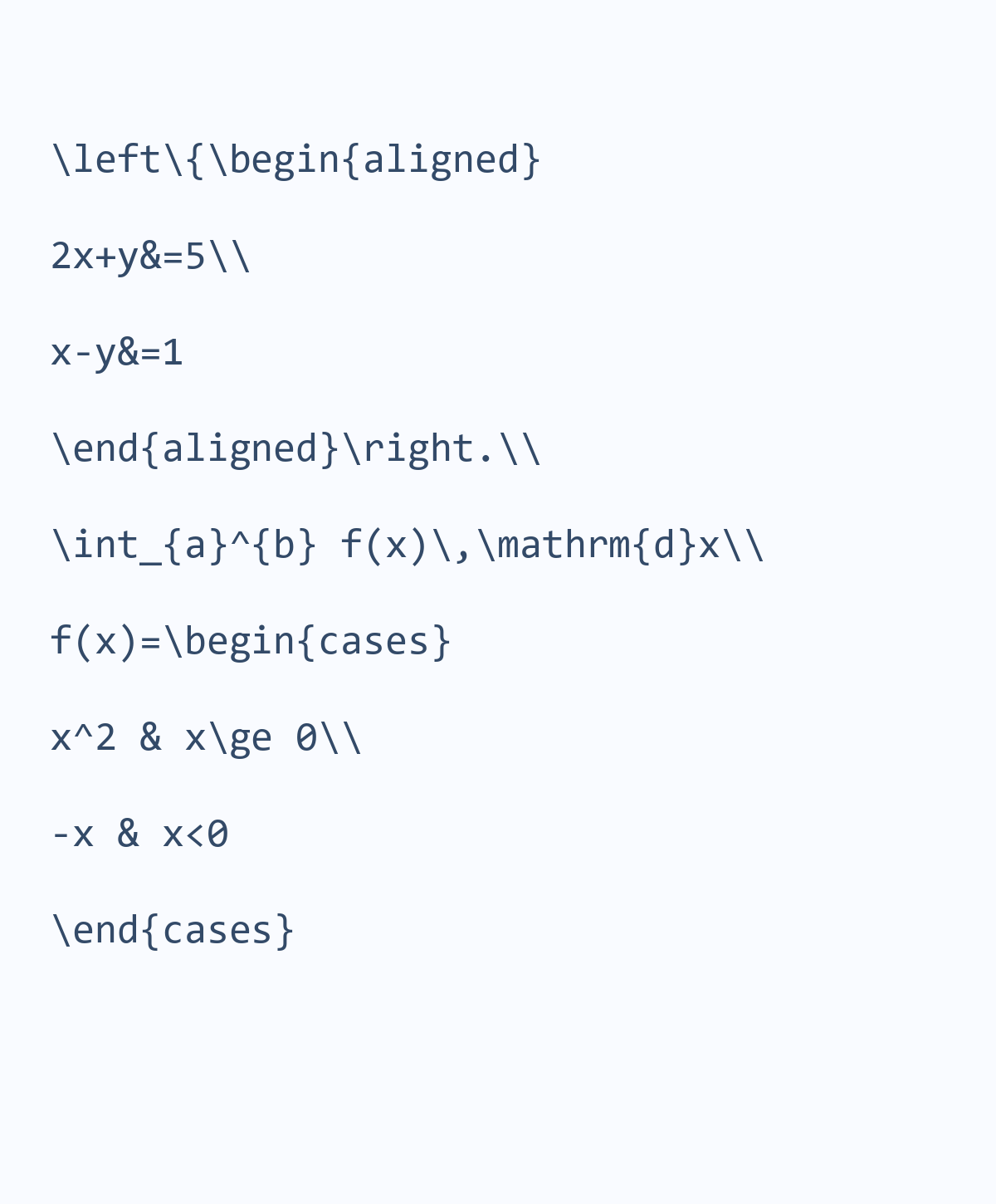
Here is the complete source used for the PDF shown above. The separators inside the system and cases arrange their internal rows; the separators after the completed system and integral create the three main lines.
\left\{\begin{aligned}
2x+y&=5\\
x-y&=1
\end{aligned}\right.\\
\int_{a}^{b} f(x)\,\mathrm{d}x\\
f(x)=\begin{cases}
x^2 & x\ge 0\\
-x & x<0
\end{cases}
Review the brace, integral limits and conditions in the preview. If the source is temporarily incomplete, the studio can keep the last valid preview visible while you finish editing. Wait for Ready to export before saving the final result.
Give the result its final appearance
Open Appearance & export and start with Classic, Blue, Dark, Burgundy, Forest or Sepia. Then adjust the math typeface, font size, equation color, background and padding. For the verified example, choose Forest, change the typeface to Computer Modern, set the font size to 28 px and padding to 32 px.
Choose PDF as the file format and Fit to equation as the PDF page to reproduce the compact result. A4 and US Letter are available when you need a standard sheet. Click Export equation, then download the result.
For crisp scaling
Choose PDF or SVG. Both keep vector outlines, so mathematical shapes stay sharp when enlarged. The PDF glyphs are drawn outlines rather than ordinary selectable text.
For presentations and images
Choose PNG or JPEG and select the image resolution. PNG and SVG can have a transparent background. JPEG is opaque, so check its background before exporting.
Open the downloaded file and check all three expressions, especially the lower piecewise row. Keep an editable copy with Save source, or use Copy LaTeX to reuse the notation elsewhere. A PDF or image export does not replace your LaTeX source.
Common questions
Do I have to know LaTeX?
No. Start with Quick Input, use a visual template, or fill a matrix or equation layout. LaTeX remains available when you want to type a command directly or fine-tune the expression.
Why do my equations appear on one line?
Physical source newlines do not necessarily create mathematical row breaks. Use Line break between complete expressions, or use Equation layouts for aligned rows and systems.
Are my equations sent to a server to render?
The equation source, preview and export are processed in your browser. This studio does not upload your equation source for compilation. Save the source locally if you want to keep editing it later.
Can the editor solve equations or check chemistry?
No. It formats the notation you enter. It does not solve a system, prove a formula, balance reactions or verify scientific correctness.
Which format should I use for a transparent equation?
Choose PNG or SVG and enable Transparent background. Use PDF for a vector document, or JPEG when an opaque image is appropriate.
Make an equation worth sharing
Start with a formula, give it room to breathe, and export the version your document needs.