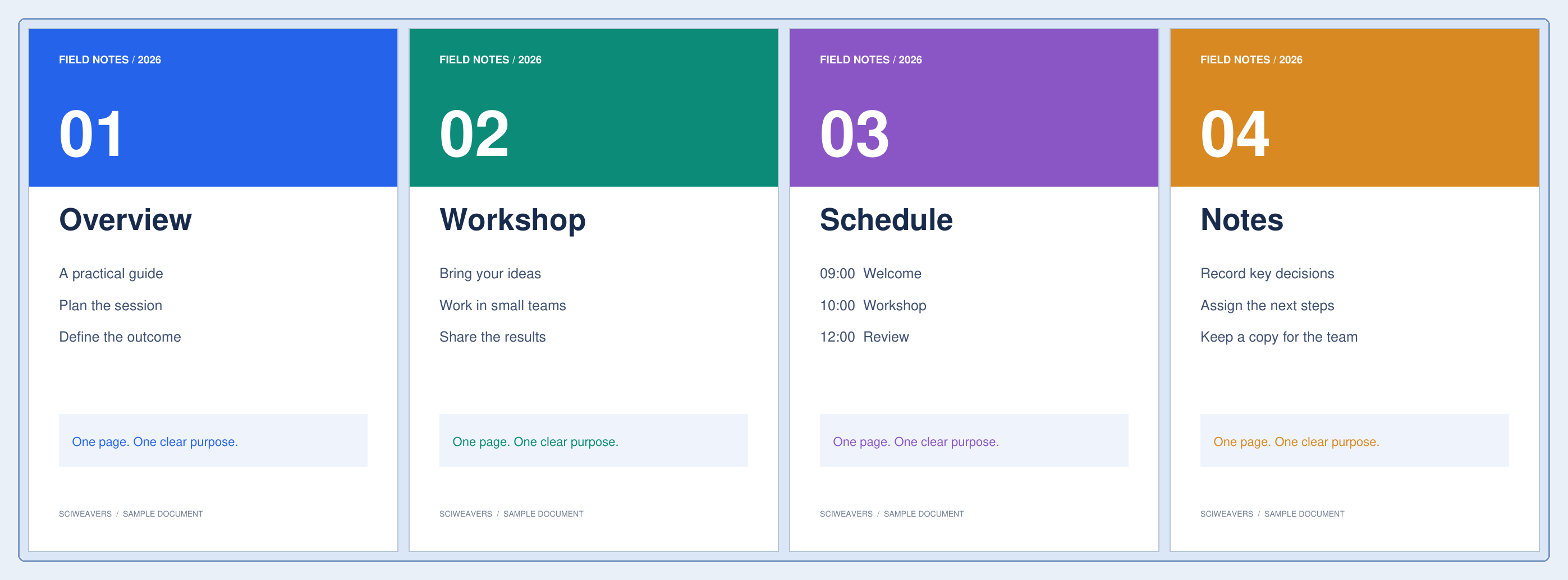
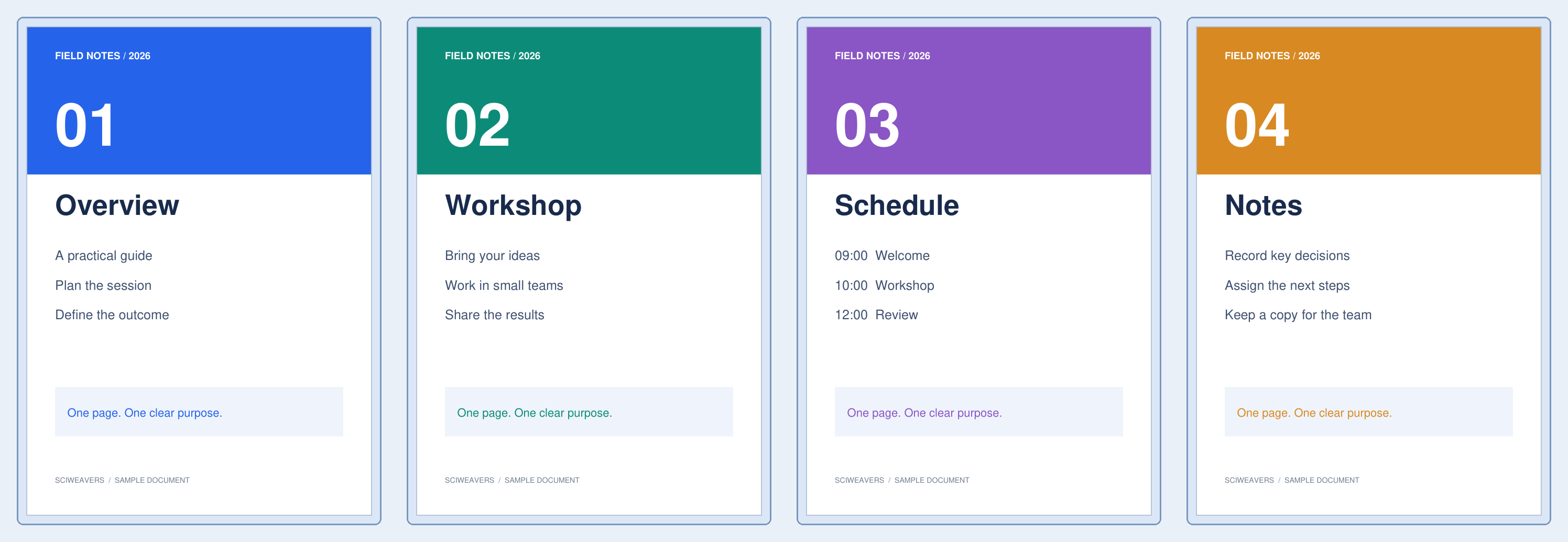

Open Split PDF by Bookmarks and choose an outline level. Our Field Notes example has four Level 1 bookmarks, so it becomes four chapter PDFs.
Check the existing bookmarks
Load a PDF with actual bookmark entries. The sample has Overview, Workshop, Schedule and Notes pointing to pages 1–4. A title printed on a page does not automatically create a bookmark.
Choose the chapter level
Select Level 1 to split at main bookmarks, or Level 2 when the document has the subchapter entries you need. Review the chapter list and its starting pages before exporting.
The example starts its first bookmark at page 1. Pages before the first bookmark at the chosen level are not covered by those chapter ranges; add a bookmark at the beginning if that material must be included.
Export and verify the chapters
Choose Start and extract the downloaded ZIP. The sample creates four one-page PDFs in the original order. Open each file and confirm its start, end and content.
If the source has no useful outline, prepare one with Create PDF Bookmarks, or use Split PDF to set page boundaries directly.
Common questions
Can I split at headings that are only printed on the pages?
Not through bookmarks alone. Add bookmark entries or use Split PDF by Text when a searchable heading reliably marks each section.
Why is Level 2 unavailable for my document?
The source may have no bookmarks at that depth. Choose a populated level or edit the outline before splitting.
Try it with your document
Review the result, then save the version you need.