Teachers & students
Make classroom displays
Enlarge a learning chart or a page from a lesson PDF into a wall display using an ordinary printer.
Turn one PDF page into a poster that fits your printer. See every sheet before you print.
Blue bands show repeated overlap. Blue outlines and number badges are preview guides only.
Download the tiled PDF, then print and assemble your poster.
Print at Actual size (100%), single-sided. Trim the margins and align the repeated edges. Test one sheet first.
Open your PDF or try the poster sample. Use the page controls to choose the page to enlarge.
Pick a grid, paper size and overlap. See the assembled dimensions and live print layout.
Download the PDF and print at 100% on one side. Trim the margins, then align the overlapping edges.
PDF Poster Maker enlarges one PDF page across several printable sheets. Choose a grid, preview the tiles, then download a multipage PDF to trim and assemble. It is also called tiled PDF printing or rasterbation, although this tool keeps the PDF page content as text and vectors.
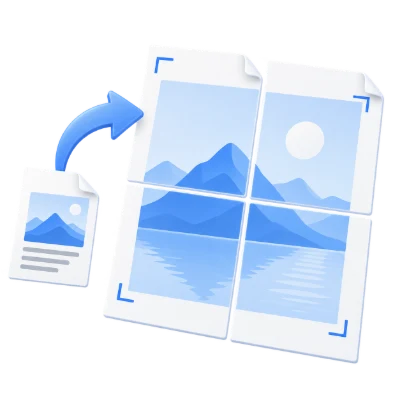
Enlarge a learning chart or a page from a lesson PDF into a wall display using an ordinary printer.
Turn a designed flyer, menu or event notice into a poster without recreating the layout.
Review the sheet count and assembled dimensions before printing an illustration or diagram. The app fits artwork to the grid; it does not guarantee a requested real-world drawing scale.
Use the page controls to choose one source page. The preview shows the complete sheet grid before you download.
Start with your PDF or the sample poster. A 2 × 2 grid, A4 portrait paper, 5 mm overlap and 7 mm printer margins are selected initially. Change a setting to update the current preview without processing the whole document.
Only the page currently shown becomes a poster. Move to another page and run the tool again for another poster. Blue outlines, overlap shading and numbered circles explain the preview; they are not printed in the PDF.
Choose 2 × 2, 3 × 3 or 4 × 4, or enter your own columns and rows. The summary shows the assembled width and height.
Each direction accepts 1–8 sheets, giving a maximum of 64 output pages. Choose A4, A3, Letter or Legal paper, in portrait or landscape orientation. The resulting PDF page dimensions match that selection.
The artwork scales proportionally to fit inside the assembled printable area. White space can remain when the artwork and grid have different proportions. The displayed size excludes printer margins and counts overlapping edges only once. It is the assembled sheet area, not necessarily the exact visible artwork size.
Repeat a small strip of the image at adjoining edges to make assembly easier. Overlap can be set from 0 to 20 mm.
Print options lets you reserve 5–20 mm around each sheet. These margins make room for the printer’s unprintable edges and optional cut guides and assembly labels. Choose a margin suitable for your printer.
Cut guides mark the corners of each printable area. Labels show sheet number / total and (row, column). Sheets are ordered left to right, then top to bottom. Trim the white margins as needed, align the repeated image strips and tape the sheets together. More overlap reduces the final assembled size for the same grid.
PDF text and vectors remain PDF content in the tiled output. The tool does not turn each sheet into a flat image.
Embedded images are enlarged with the rest of the artwork. Enlarging them cannot add missing detail, so low-resolution scans and photos may look soft. The live preview is an image for display; the downloadable PDF retains the original page content.
Arabic artwork and existing page rotation are preserved without mirroring the poster. The visible PDF crop area is used. Comments, interactive form fields and link annotations are not included; flatten any annotation or filled field that must become part of the printed artwork before using this tool.
Choose Create poster to create a separate PDF with one output page per sheet. Your original PDF stays unchanged.
The document is processed in your browser without uploading it. Large files and complex artwork may take more memory or time on your device. The tool accepts one unencrypted PDF within the limits shown above.
Download the PDF, then print it at 100% / Actual size, single-sided, using the selected paper. Back returns to the poster settings so you can revise the grid or use another source page. Start over clears the workspace. Download before closing the page; this tool does not save a resumable project.
Open one PDF up to 100 MB and 750 pages. Additional output, memory and processing limits can apply to complex documents.
One unencrypted PDF up to 100 MB and 750 source pages. Each run uses the current page and creates up to 64 sheets.
Processing takes place on your device without uploading the document. Download your result before closing the page; keep the original separately.
Know what to expect before you start.
On your deviceOpen your PDF, select the source page, choose the number of columns and rows, and download the tiled PDF. Print every output sheet at Actual size (100%) on the chosen paper size, then trim and assemble.
No. Each run uses only the source page currently shown. Use the page controls to choose another page and create a separate poster.
Yes. A4, A3, Letter and Legal are supported in portrait or landscape orientation. Choose the size actually loaded in your printer.
The overlap repeats a strip of artwork on neighboring sheets so you can align them. Set overlap to 0 mm if you do not want repeated content. The blue overlap shading is only a preview guide and is not printed.
Choose from 1 to 8 columns and 1 to 8 rows, up to 64 output sheets per poster. Presets offer 2×2, 3×3 and 4×4 grids. The assembled size includes the printable area and accounts for overlap.
Text and vector page content are preserved as PDF objects, without rasterizing the output. Embedded images retain their original pixels, so enlarging a low-resolution image may reveal blur. White space may remain because the page keeps its proportions.
Yes. Existing Arabic text and embedded fonts are retained, and page rotation and the visible crop area are respected. Interactive fields, comments and link annotations are not included; flatten them into page artwork first if needed.
No. Previewing and creating the poster happen in your browser. Download the result before closing or refreshing the page.
Each label gives the sheet number and total, followed by its row and column. Sheets are ordered from left to right, then top to bottom. The order stays the same in the Arabic interface so the artwork is never mirrored.