
Open PowerPoint to PDF and upload your document. A PDF is useful when someone needs to read or print your slides without opening the original presentation. It records the visible page layout; keep the presentation for delivery and editing.
Prepare the source layout
Review the slide size, fonts, charts and image placement in the original presentation. Make sure the visible slides explain the message on their own if the recipient will not hear your narration.
The tool accepts PPTX, PPT or ODP. Keep a copy in its original format so you can revise the source after reviewing the PDF.
Upload and convert
Add the file to PowerPoint to PDF, or choose the sample to follow the example. Wait until the file is ready, then choose Start.
This workflow does not add paper-size or margin controls after upload. Make those layout decisions in the original Office file before converting.
Download and review every page
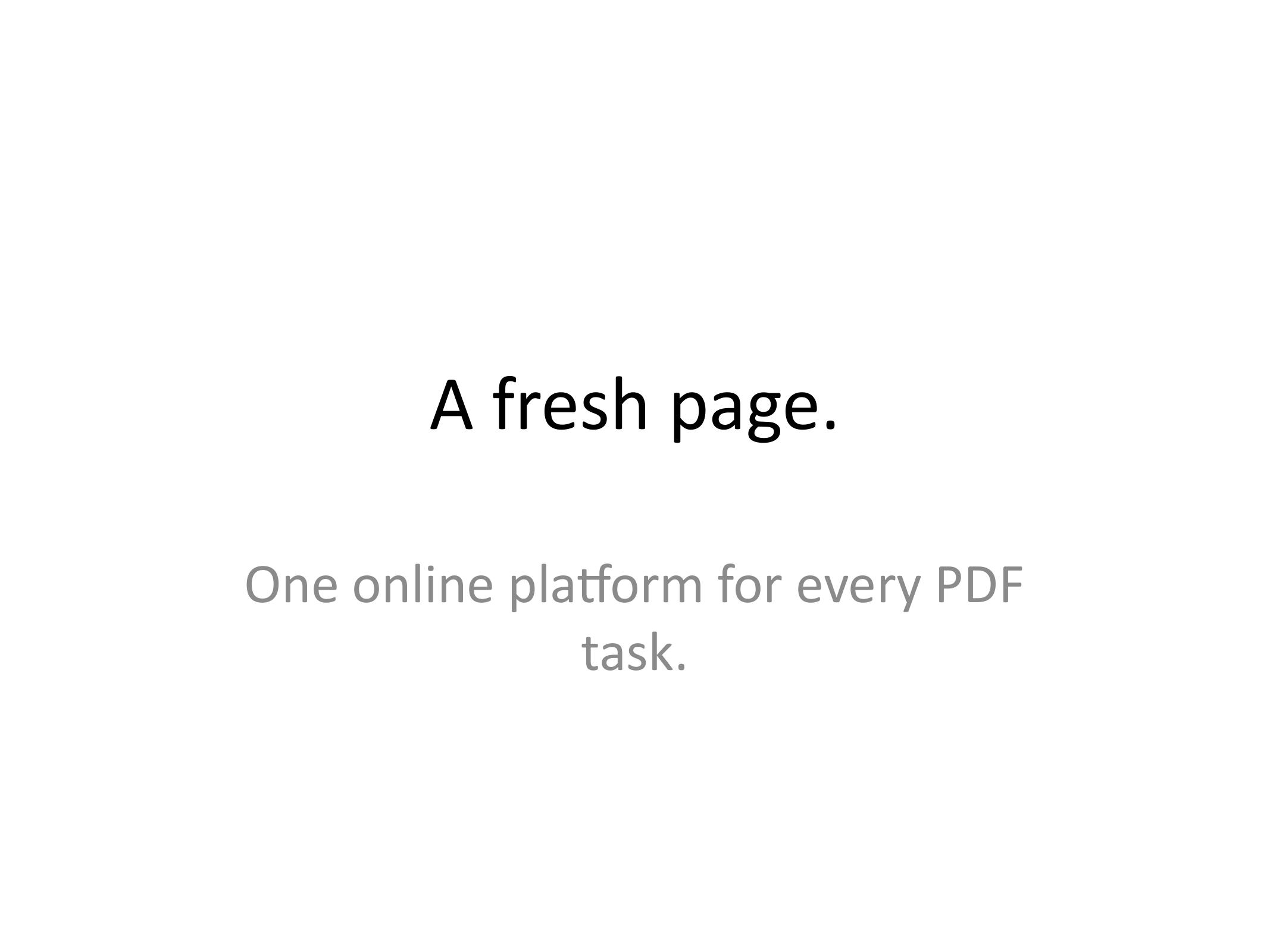
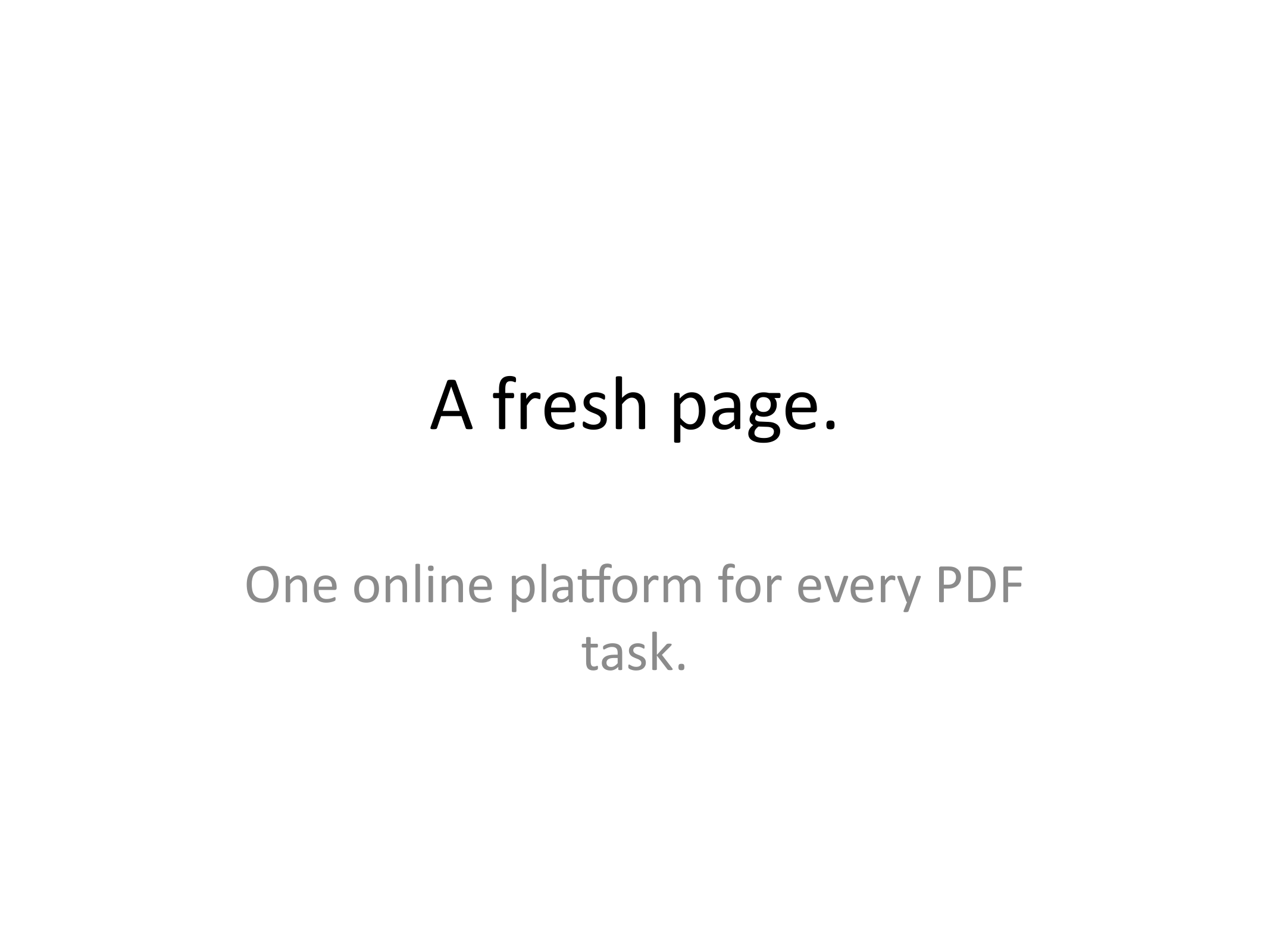
Download the PDF and open it in a PDF reader. Our one-slide PPTX headed “A fresh page.” becomes a one-page PDF. Open every page of a larger deck and check small chart labels, objects near the edges and the order of the slides.
If the layout needs correction, revise the source and convert it again. Give the final PDF a clear name so it is easy to distinguish from an earlier draft.
Common questions
Will animations and video play in the PDF?
This conversion produces static pages. Do not rely on it to preserve animations, transition timing, narration or playable media. Share the original presentation when those features are needed.
Can I combine the PDF with other documents?
Yes. After checking the conversion, use Merge PDF to combine it with other PDFs and review the final page order.
Try it with your document
Review the result, then save the version you need.