
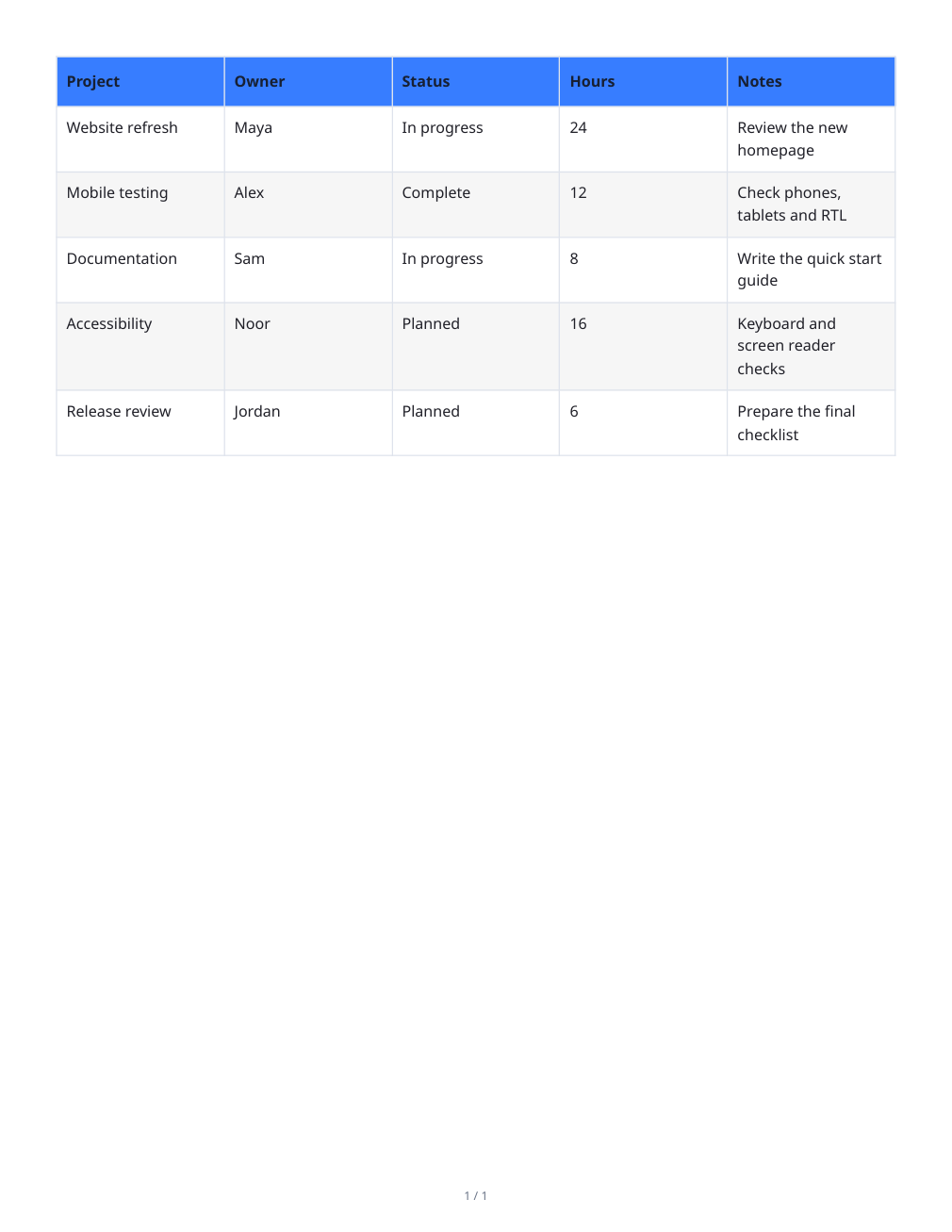

Open Table to PDF to create a table, paste spreadsheet cells or import CSV/TSV data. Edit the content before choosing the final page layout.
Create or import the table
Start with a blank table or import your data. Check the column boundaries and quoted cells after import. The sample contains five project rows with owners, statuses, hours and notes.
Edit cells directly and use row or column actions when the structure needs to change. Resize columns to give long notes more space.
Style the table and inspect Preview
Choose whether the first row is a header, then set its color, alternating rows, borders and cell spacing. Keep repeated headers for a long table.
Start with Letter portrait, half-inch margins and the default 13-pixel text. Open Preview and check the page breaks. Use landscape or wider paper when many columns make the table cramped.
Export PDF and keep a CSV copy
Choose the PDF export action and open the saved document. Check the first and last rows, edited cells, header repeats and notes that wrap onto several lines.
Use Save CSV to keep an editable data copy. Search in the editor filters what you see there; the PDF and CSV exports include the entire table.
Common questions
Does searching export only matching rows?
No. Search filters the editor view; exports contain the whole table. Remove unwanted rows from your working table before exporting a smaller dataset.
How do I continue editing later?
Save the CSV data and keep it locally. Reimport it to edit the values again; CSV does not preserve all PDF styling choices.
Try it with your document
Review the result, then save the version you need.