Inventory teams
Collect product identifiers
Read barcode values from PDF packing lists and product documents.
Read the codes. Find their pages. Export useful data.
Find barcodes to review the data. Start also scans before exporting.
The file contains the codes that match your current filters.
Open a digital or scanned PDF, or try the mixed-barcode sample.
Click Find barcodes. Compare the images with decoded values, filter results and click an image or page number to find its source.
Choose a data format or PDF with barcode images, then click Start. Start also scans if needed.
Extract Barcodes from PDF decodes visible 1D and 2D symbols, including QR codes, across your document. Compare each value with its source image, locate its page and export CSV, JSON or text. You can also collect cropped barcode images in a new PDF. Everything runs on your device.
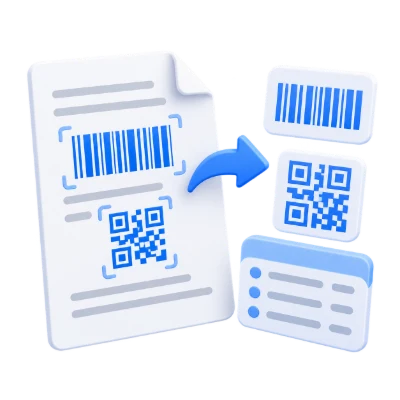
Read barcode values from PDF packing lists and product documents.
Collect tracking or packet identifiers and retain their source page numbers.
Export JSON with locations or a CSV list for review in a spreadsheet.
Collect visible barcodes without needing a selectable text layer.
The tool reads Code 128, Code 39, Code 93, Codabar, EAN/UPC, ITF, DataBar, QR, Data Matrix, PDF417 and Aztec families. Both scanned and digital PDFs can be used.
Find barcodes or Start triggers the whole-document scan. Detection uses local page images at up to 200 dpi with bounded dimensions. Clear, adequately sized codes work best; damaged, obscured or very small symbols may be missed.
Locate any result on its original PDF page.
Data lists each occurrence with its page number, barcode type and decoded text. Click a page number to switch to Preview and highlight its location. Matching thumbnails are tinted yellow. Repeated values remain separate occurrences.
Search filters the decoded text without letter case differences. The barcode type filter separates 1D and 2D codes. These filters update the list and download without rescanning the PDF.
Choose CSV, JSON, text, or a PDF containing the detected barcode images.
CSV has Page, Type and Value columns and a UTF-8 byte-order mark. Import Value as Text in Excel to retain leading zeros and long numbers. Formula-like values are prefixed with an apostrophe for spreadsheet safety.
JSON preserves decoded values with page numbers, formats and normalized x/y/width/height bounds. TXT lists each value with its page and type. Copy copies only the currently filtered values. Decoded links are never opened automatically.
PDF with barcode images crops the detected symbols from the original page render, keeps a small surrounding margin, and places four images per A4 page with their source page numbers. It follows the current filters and supports up to 400 codes / 50 MB of images. These are raster images, not regenerated barcode vectors. No-match PDF export asks you to adjust the filters or source.
Keep the source PDF and decoded contents on your device.
The tool accepts one PDF up to 100 MB and 750 pages. There is no upload or remote decoding service. Text encoded correctly as Arabic in QR codes is preserved in the interface and UTF-8 exports.
Detection is limited to fewer than 100 codes per page and at most 5,000 per document, with at most 8,192 characters per value. No-match CSV and JSON exports are empty reports. Password-protected PDFs must be unlocked first.
Open one PDF up to 100 MB and 750 pages. Additional output, memory and processing limits can apply to complex documents.
Processing takes place on your device without uploading the document. Download your result before closing the page; keep the original separately.
Know what to expect before you start.
Private processingYes. Open the PDF and click Find barcodes. QR values appear in Data with a link to the source page.
Yes. It reads page images and does not require OCR or selectable text. The barcode must be clear enough to decode.
Choose CSV. Import the Value column as Text in Excel to preserve leading zeros and long numeric identifiers. CSV is not an XLSX workbook.
No. Every detected occurrence is listed with its page number. Filters decide which results are copied or downloaded.
No. Values are displayed as text only. Script-like or URL values are not executed or opened.
Yes, when the QR code uses a supported text encoding. Arabic text stays intact in UTF-8 CSV, JSON and text exports.
Try a clearer document or adjust the filters. CSV and JSON can still be downloaded as empty reports; no-match results do not prove that a document has no barcodes.
Yes. Choose PDF with barcode images below the CSV option. The current matching codes are cropped from the source pages and placed in a new PDF, four per page with source page references. Up to 400 codes can be exported this way.