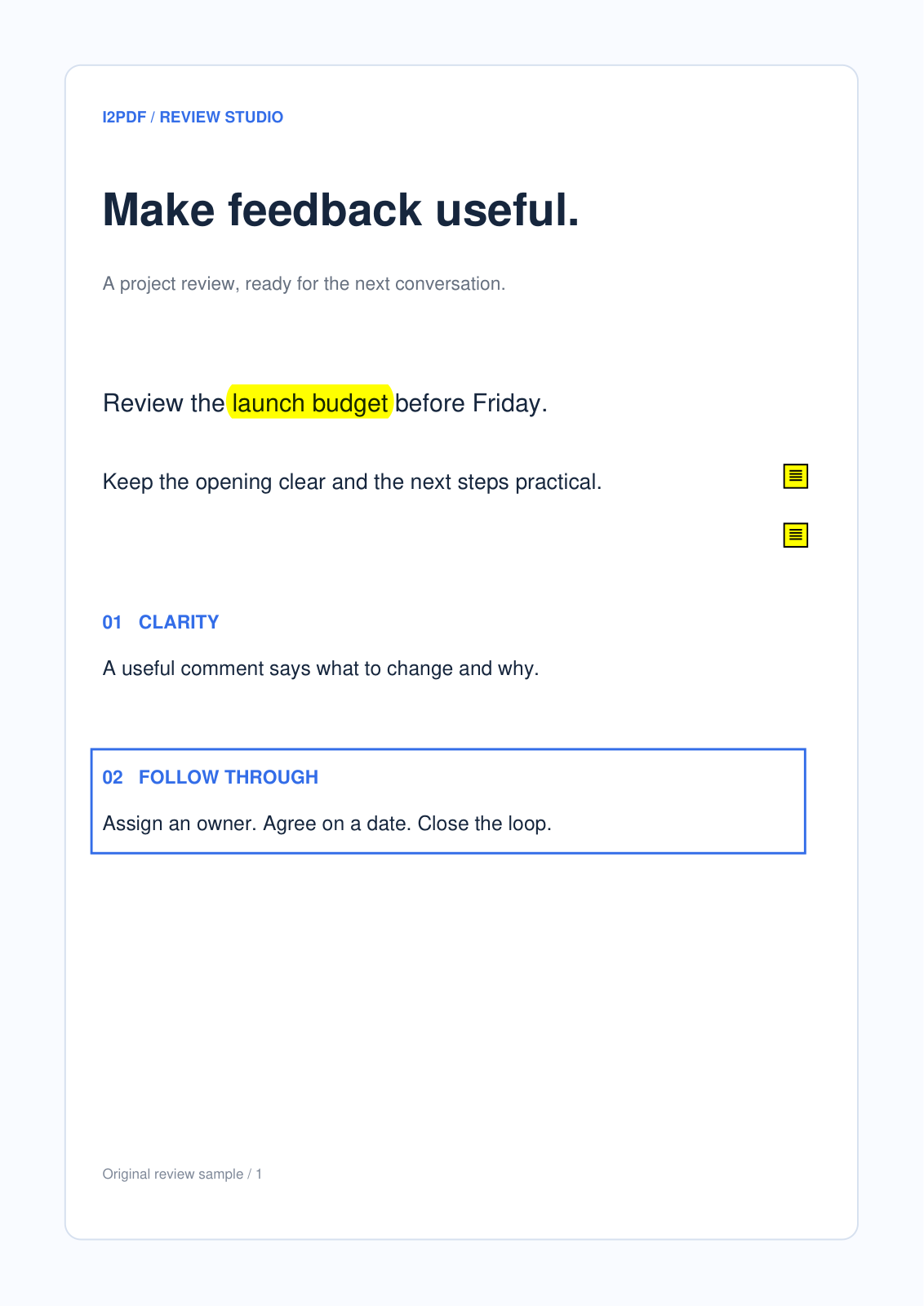
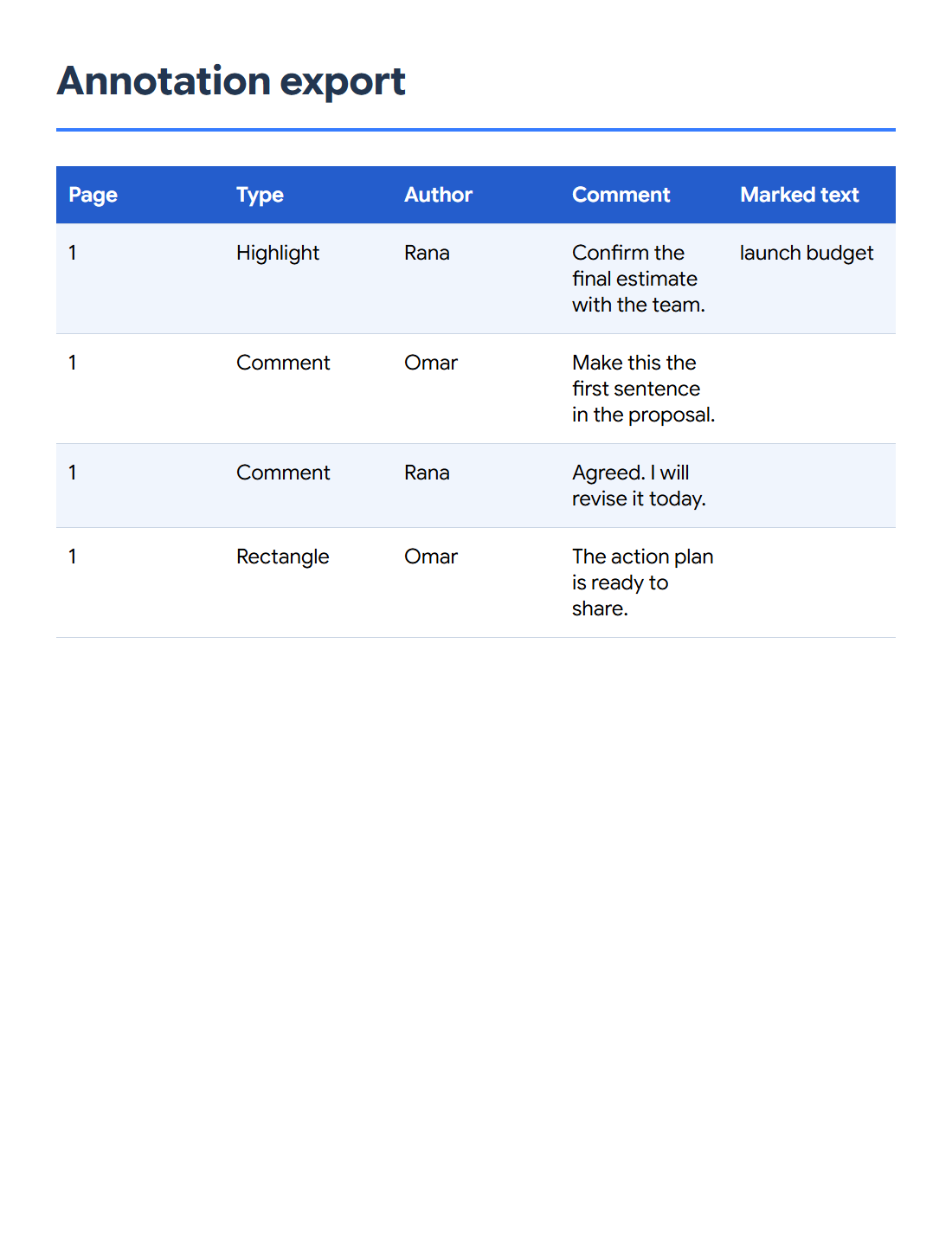

Use Export PDF Annotations to turn stored comments and marks into data you can review separately. Our two-page sample produces seven annotation records, including English and Arabic comments and a reply.
Open the annotated PDF
Add the PDF and inspect its comments and marks. The tool reads annotation objects such as notes, highlights and drawings; a picture of a highlighted page is not the same as a stored highlight.
Our first highlight includes Rana’s comment, “Confirm the final estimate with the team.”, attached to the words “launch budget”.
Choose pages and annotation groups
Keep All pages under Pages to export to gather feedback from the complete document. Choose the current-page option only when you want that page’s annotations.
Leave the annotation groups enabled to include comments, text marks, drawings and other supported annotations. Keep Include marked text enabled to add available text beneath highlights and similar marks.
Export and review the records
Select CSV under Export format and choose Export annotations. Open the file and check the page references, comments and marked text against the PDF. Our example produces seven records.
Use JSON when you need the structured annotation data, including supported geometry and reply relationships. Text is convenient for reading a simpler report. Keep the PDF alongside the export for visual context.
Common questions
Does exporting remove the comments from the PDF?
No. It creates a separate report. Use Remove Annotations from PDF if you also need a clean copy.
Why is marked text sometimes empty?
A note or shape may have no marked text. Highlights on image-only pages may also lack selectable text for the tool to include.
Try it with your document
Review the result, then save the version you need.