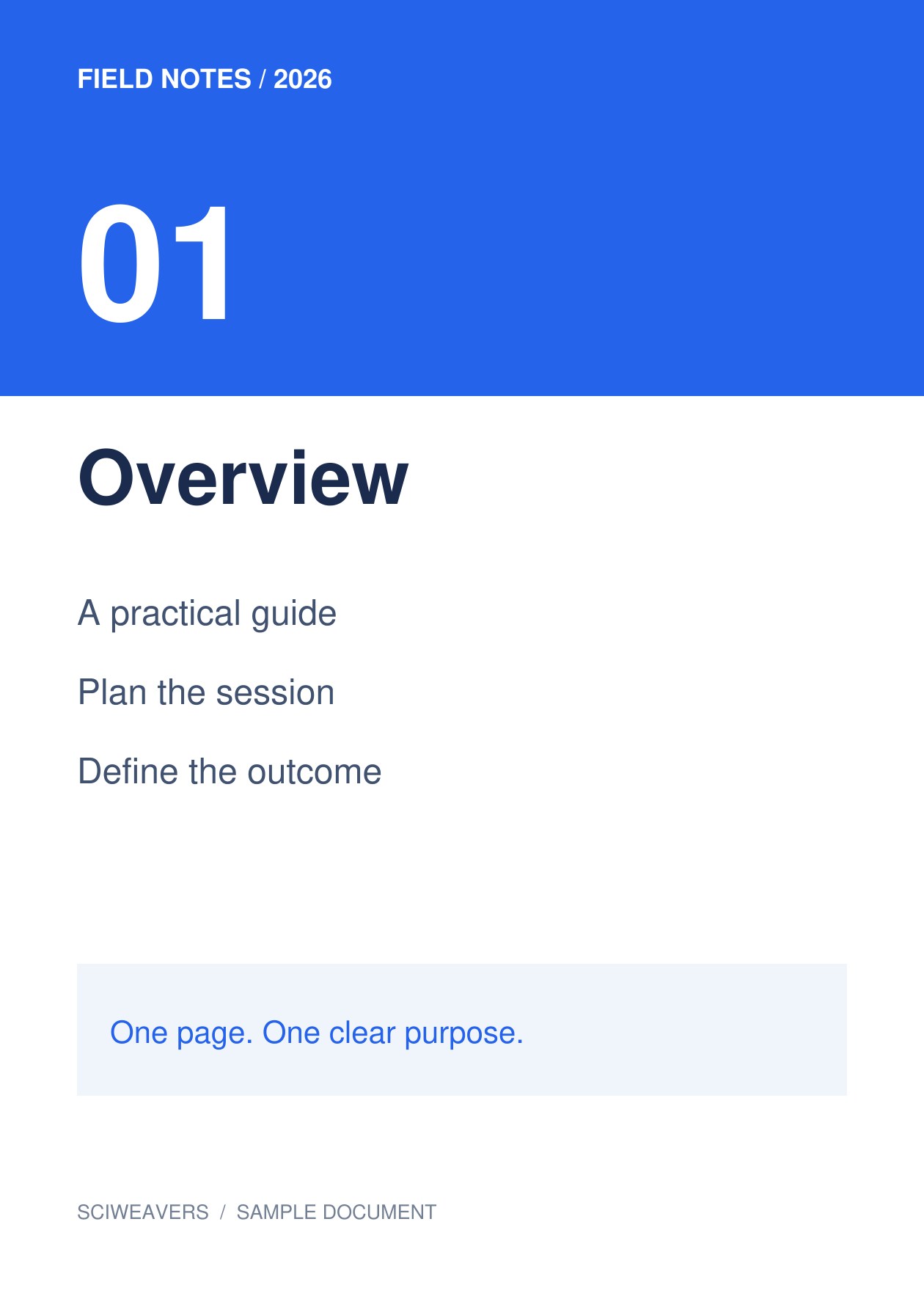


Open SVG to PDF and add the source images. SVG is useful for diagrams and illustrations, while PDF gives that artwork a document page for printing or sharing. Our source is a self-contained SVG of a sample document page.
Load and arrange the images
One SVG image. Use a self-contained SVG where possible. Check lettering, embedded pictures and effects in the preview; an artwork file that depends on unavailable external resources may render differently.
Add your file or files and wait for the thumbnails. The board shows the pages that will be exported. Drag to reorder, select a tile to rotate it, or remove it if it does not belong in the document.
Choose paper, margins and fit
For this example choose A4, Portrait and 0.5 in margins. Keep Fit whole image under Image fit and white under Page color. The layout settings apply to every page.
The default paper option is Fit image, with Match image orientation and zero margins. Choosing A4 instead makes the physical paper size consistent. Fit whole image retains the full picture; Fill page · crop edges can cut content at the edges when proportions differ.
Export and check the PDF
Set the output filename, then choose Start and download. Selecting tiles is only for editing; every image remaining on the board is exported.
Open the saved PDF and confirm the page count, order, orientation and margins. Our result has 1 page, each measuring about 210 × 297 mm. Compare the smallest lettering with the source before printing or submitting it.
Common questions
Does an SVG become an editable PDF document?
Conversion creates a PDF rendition of the artwork. It does not recreate the original drawing application’s layers or turn outlined letters into ordinary editable text.
Can I search text inside the resulting images?
Image-to-PDF conversion does not perform OCR. If you need searchable text from a scanned image, run PDF OCR on the resulting PDF and review the recognized content.
Try it with your document
Review the result, then save the version you need.