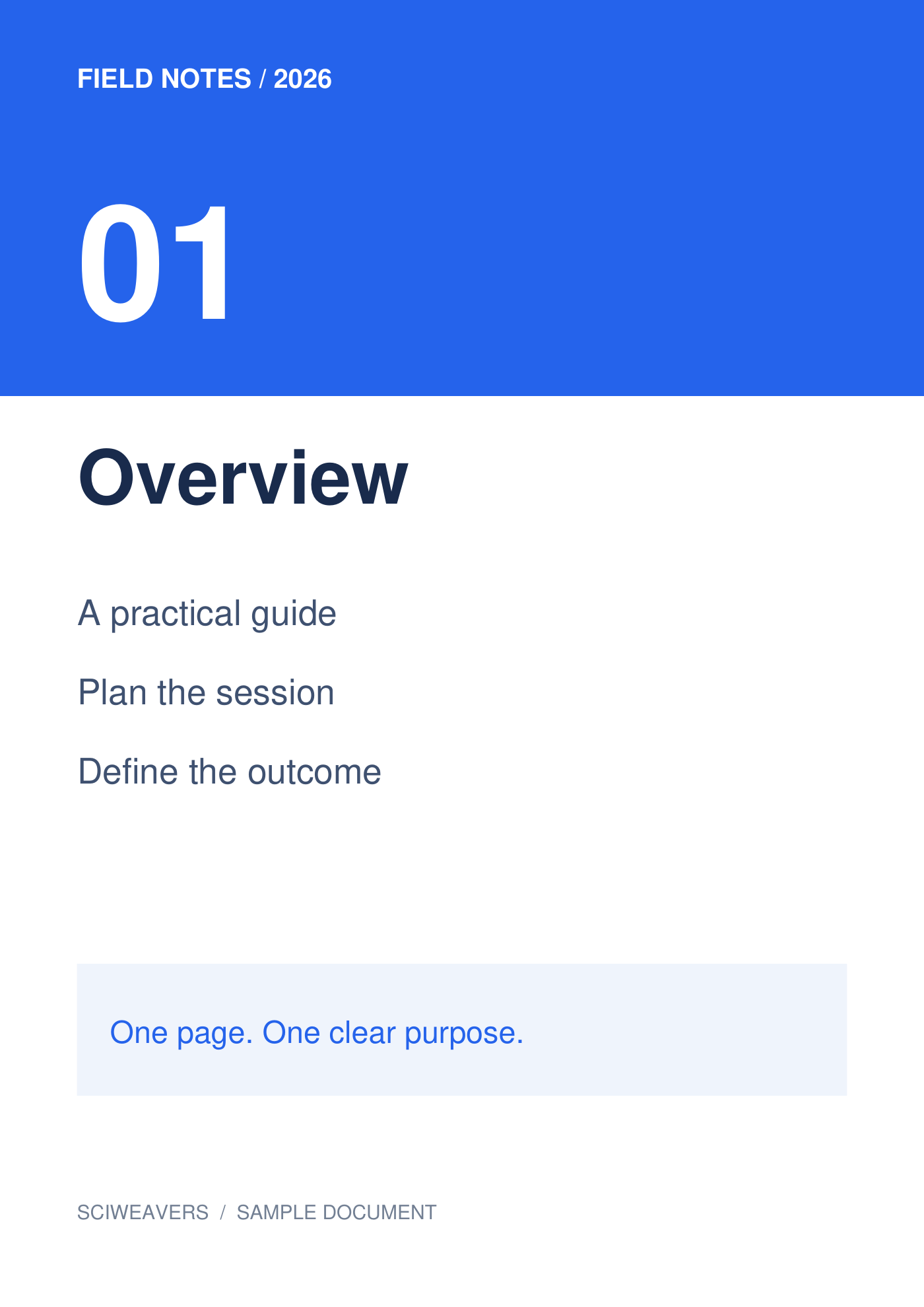

Open TIFF to PDF and add the source images. A TIFF can contain more than one image frame. In our verified example, one two-frame TIFF becomes a two-page PDF; the first frame is shown in the comparison.
Load and arrange the images
One TIFF containing 2 frames. After loading the TIFF, count the tiles and check their sequence. Our source contains the Overview frame followed by Workshop; each becomes its own PDF page.
Add your file or files and wait for the thumbnails. The board shows the pages that will be exported. Drag to reorder, select a tile to rotate it, or remove it if it does not belong in the document.
Choose paper, margins and fit
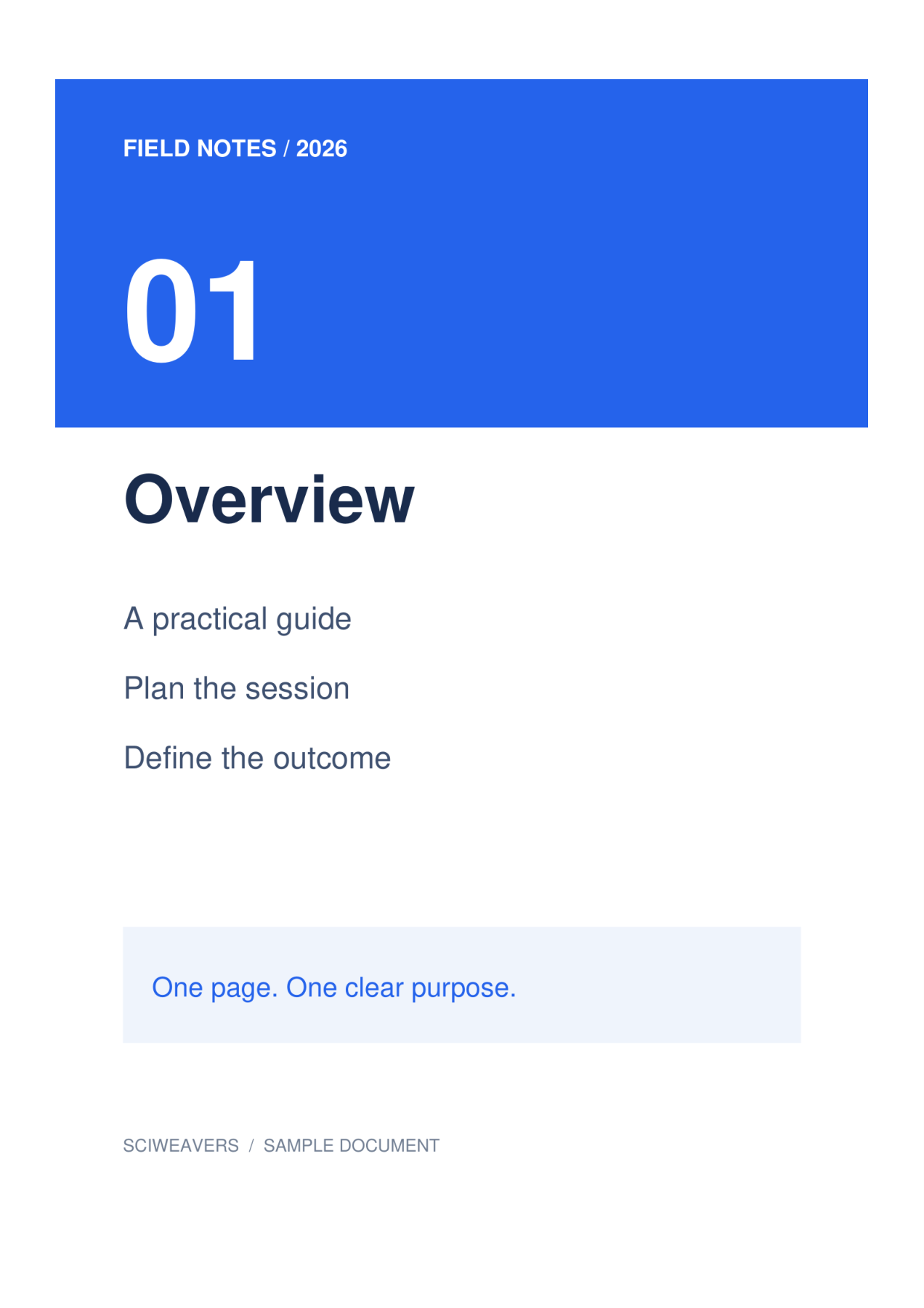
For this example choose A4, Portrait and 0.5 in margins. Keep Fit whole image under Image fit and white under Page color. The layout settings apply to every page.
The default paper option is Fit image, with Match image orientation and zero margins. Choosing A4 instead makes the physical paper size consistent. Fit whole image retains the full picture; Fill page · crop edges can cut content at the edges when proportions differ.
Export and check the PDF
Set the output filename, then choose Start and download. Selecting tiles is only for editing; every image remaining on the board is exported.
Open the saved PDF and confirm the page count, order, orientation and margins. Our result has 2 pages, each measuring about 210 × 297 mm. Compare the smallest lettering with the source before printing or submitting it.
Common questions
Will a multipage TIFF create more than one PDF page?
Yes. The tested two-frame TIFF produces two PDF pages. Inspect the loaded tiles and the downloaded page count to make sure all expected frames are included.
Can I search text inside the resulting images?
Image-to-PDF conversion does not perform OCR. If you need searchable text from a scanned image, run PDF OCR on the resulting PDF and review the recognized content.
Try it with your document
Review the result, then save the version you need.