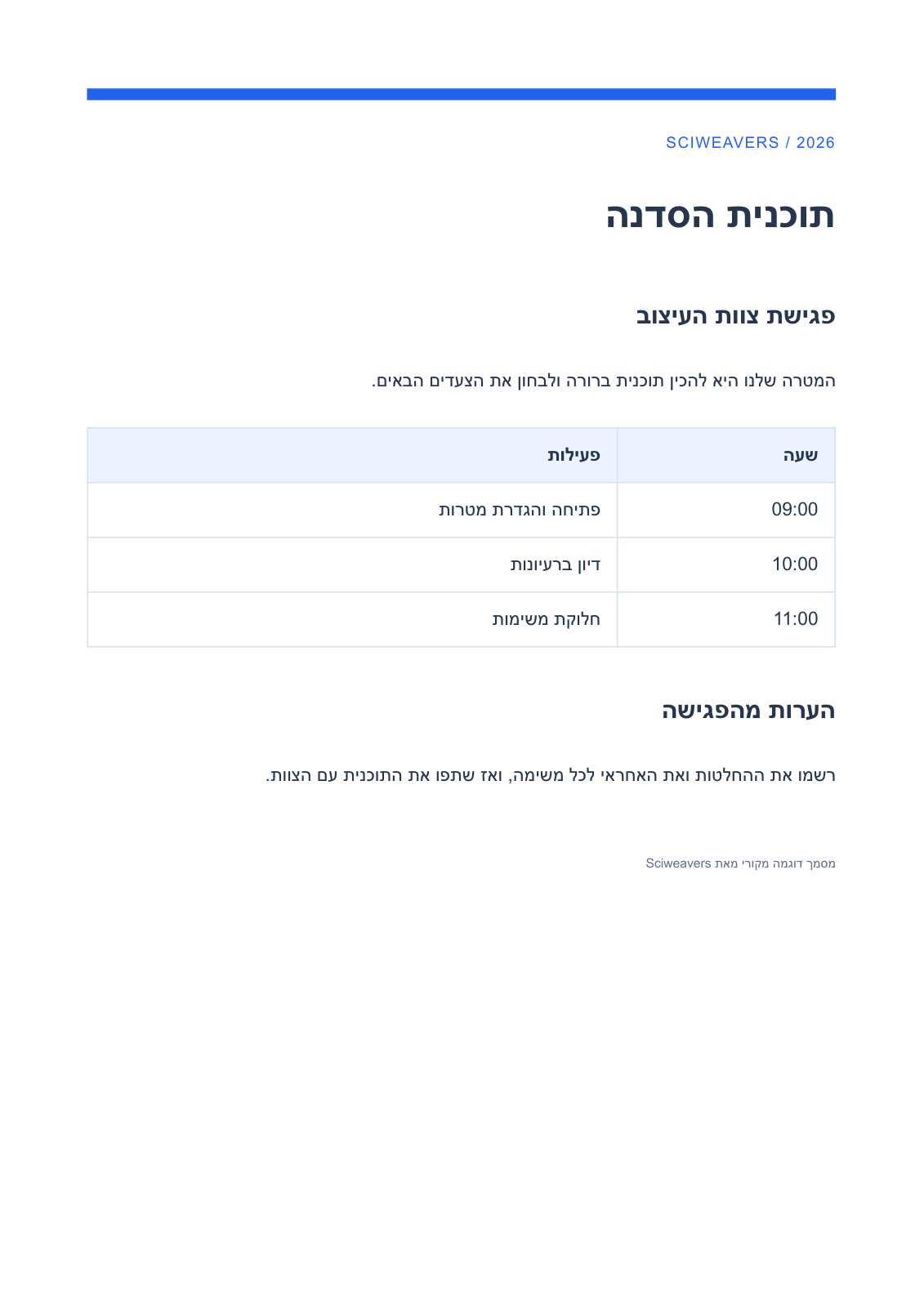
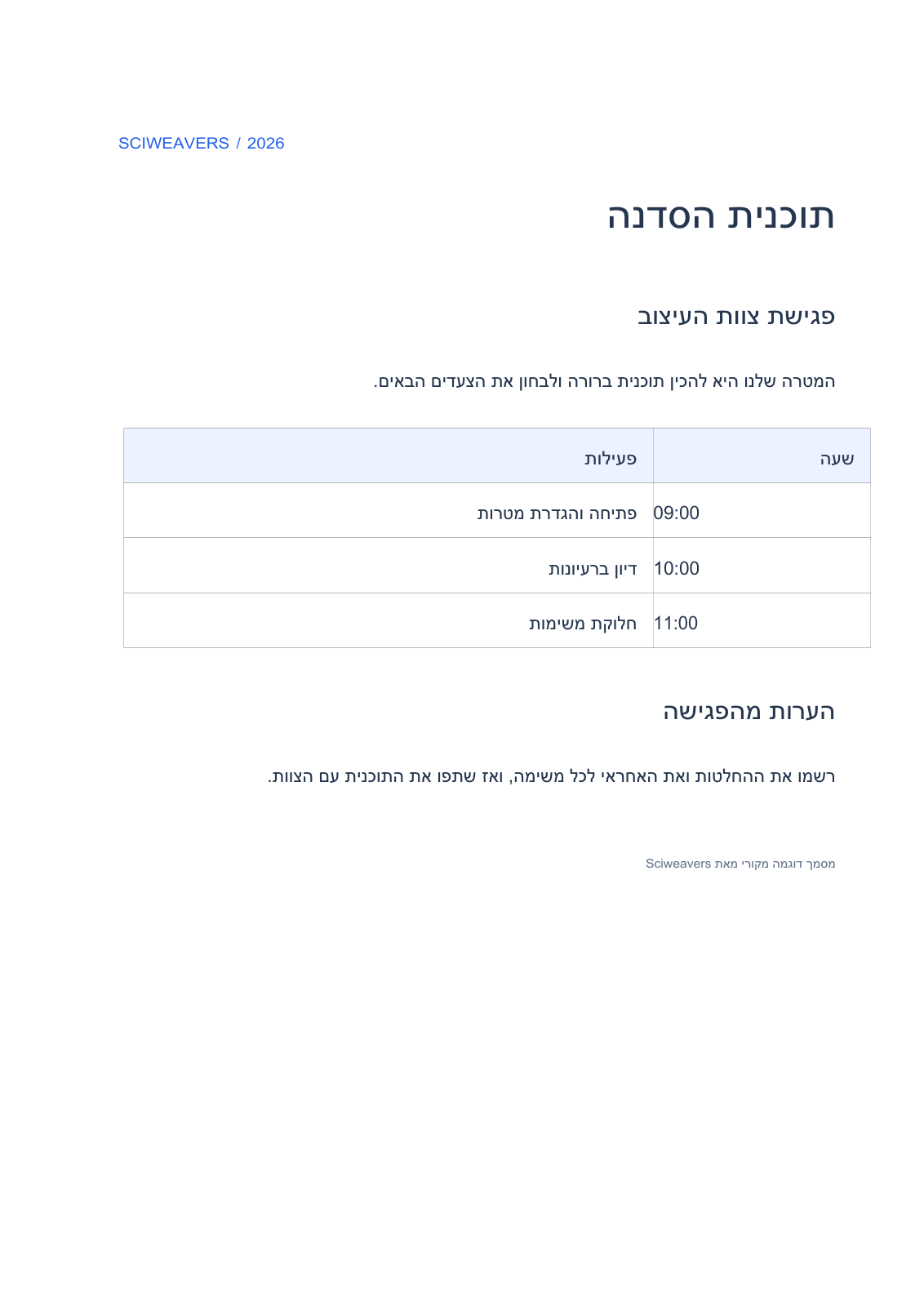

Open Hebrew PDF to Word and add your PDF. Use it when an existing Hebrew PDF needs a Word version for editing. Our original example combines Hebrew paragraphs, a schedule and Latin times, making mixed-direction content part of the review.
Start with a PDF containing text
Upload the Hebrew PDF, or choose Use Sample PDF to open the language-specific workshop agenda shown here. Wait for the preview. This tool converts existing content; choosing its language-specific name does not translate the document.
If no page contains selectable text, the tool sends the document to PDF OCR. Recognition happens in that separate workflow. A mixed PDF can stay in Word conversion, so check scanned pages individually instead of assuming they will become editable text.
Choose the page range
Use Pages to enter a range such as 1-3, 5, or leave it blank for the document. Each conversion is limited to 50 pages; a longer selection includes only its first 50 pages.
For a long document, run separate ranges such as 1-50 and 51-100. Our source has one page, so leaving the field blank includes the full agenda.
Download and review the Word file
Choose Start and download the DOCX. Open it in a Word editor and compare the saved file with the original PDF.
The verified output has one page, editable right-to-left paragraphs and one Word table containing the schedule. Check the order of Hebrew words, sentence punctuation, parentheses and Latin time values. Place the cursor in a paragraph and a table cell to confirm that editing follows the expected right-to-left direction.
Check that each time still corresponds to the correct activity. Reconstructed fonts, spacing and text runs may need cleanup; the comparison deliberately shows the actual downloaded result.
Common questions
How should I check Hebrew mixed with English or numbers?
Read the full sentence, including punctuation, and check where the cursor moves while editing. The example retains Latin times inside a Hebrew schedule; review your own dates, references and mixed-language phrases separately.
Does this translate another language into Hebrew?
No. It converts the text that is already in the PDF. Use Translate PDF if you need a translation, and review that text separately.
Try it with your document
Review the result, then save the version you need.