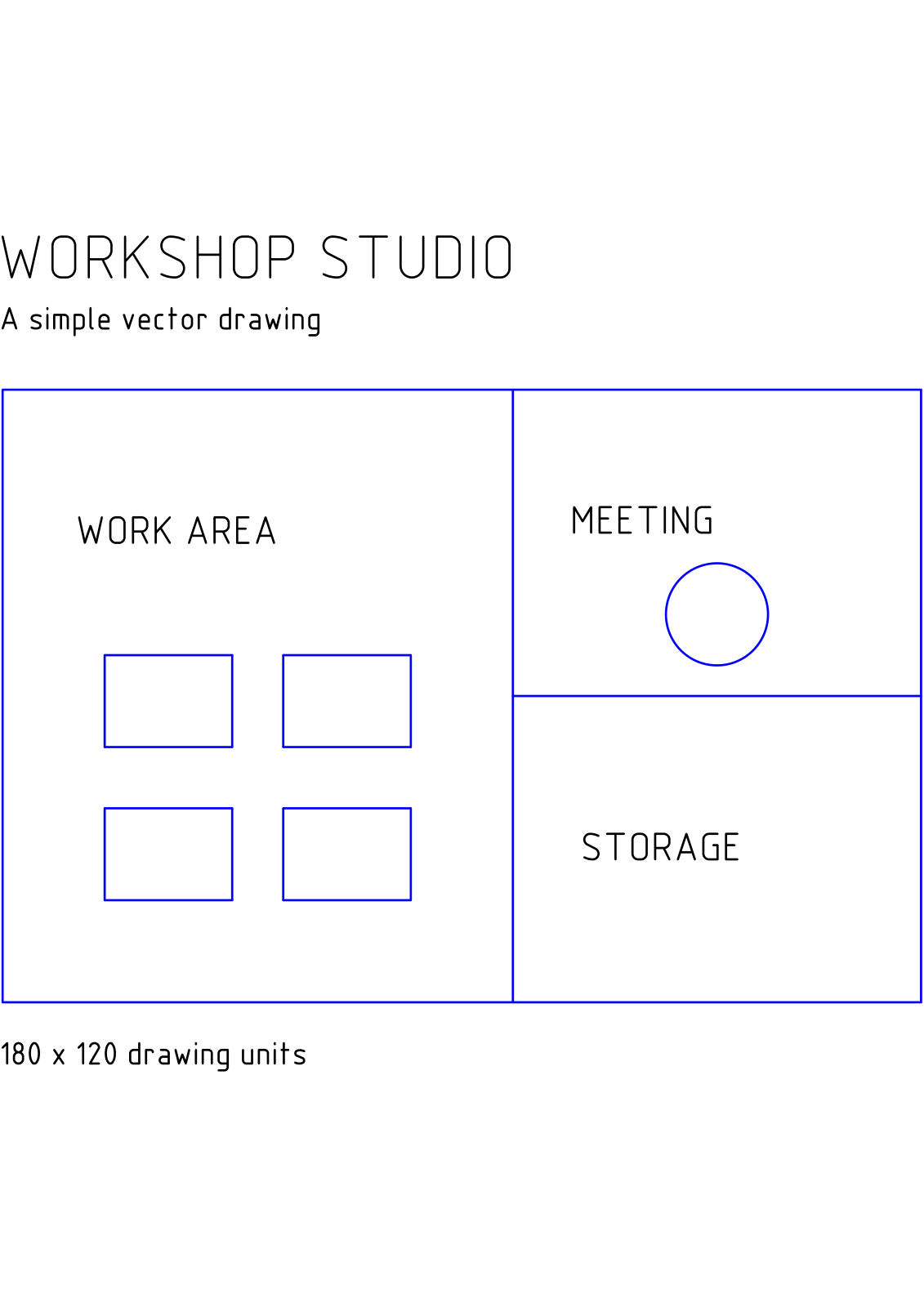
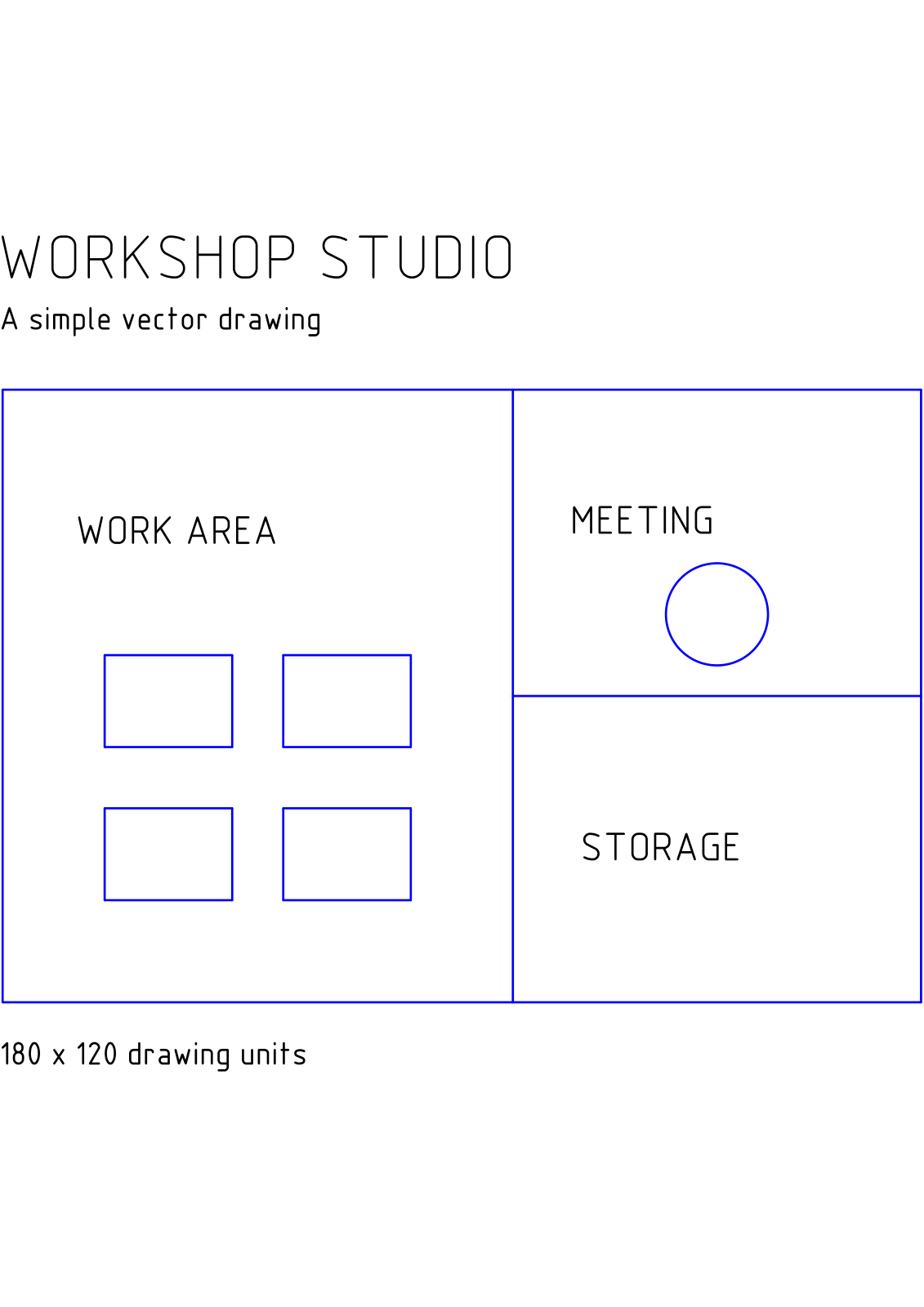

Open DXF to PDF and add your drawing. Our example converts an original DXF workshop plan to a one-page A4 PDF.
Add the drawing
Choose one DXF file. The source card shows its filename and format. Our example uses workshop-plan.dxf.
If the drawing depends on external references or custom fonts, check the finished PDF for missing content. The file card is not a rendered preview of every drawing element.
Set paper and rendering options
Choose Paper size. The example changes Auto to A4 and keeps Rendering set to Color. Grayscale and Black and white are available when appropriate for the drawing.
Review Dimension arrow size and Dimension text height; both default to 0.2. Maximum line width defaults to Auto. These controls affect drawing presentation, so inspect dimension annotations and line weights after export.
Convert and inspect the PDF
Choose Start and download the PDF. Open it, zoom in and inspect the smallest labels, dimension arrows and line intersections. The example produces one A4 page.
The drawing is automatically fitted to the selected sheet. If physical scale matters, verify a known dimension in the resulting PDF and check the print settings before using a printed copy.
Common questions
Should I keep Auto paper size?
Use Auto when the drawing bounds should determine the page size. Choose A4 or another explicit size when the recipient needs a standard sheet. Review the fit and line readability in either case.
How can I combine several converted drawings?
Convert each drawing, then use Merge PDF to assemble the resulting PDFs in the required order.
Try it with your document
Review the result, then save the version you need.