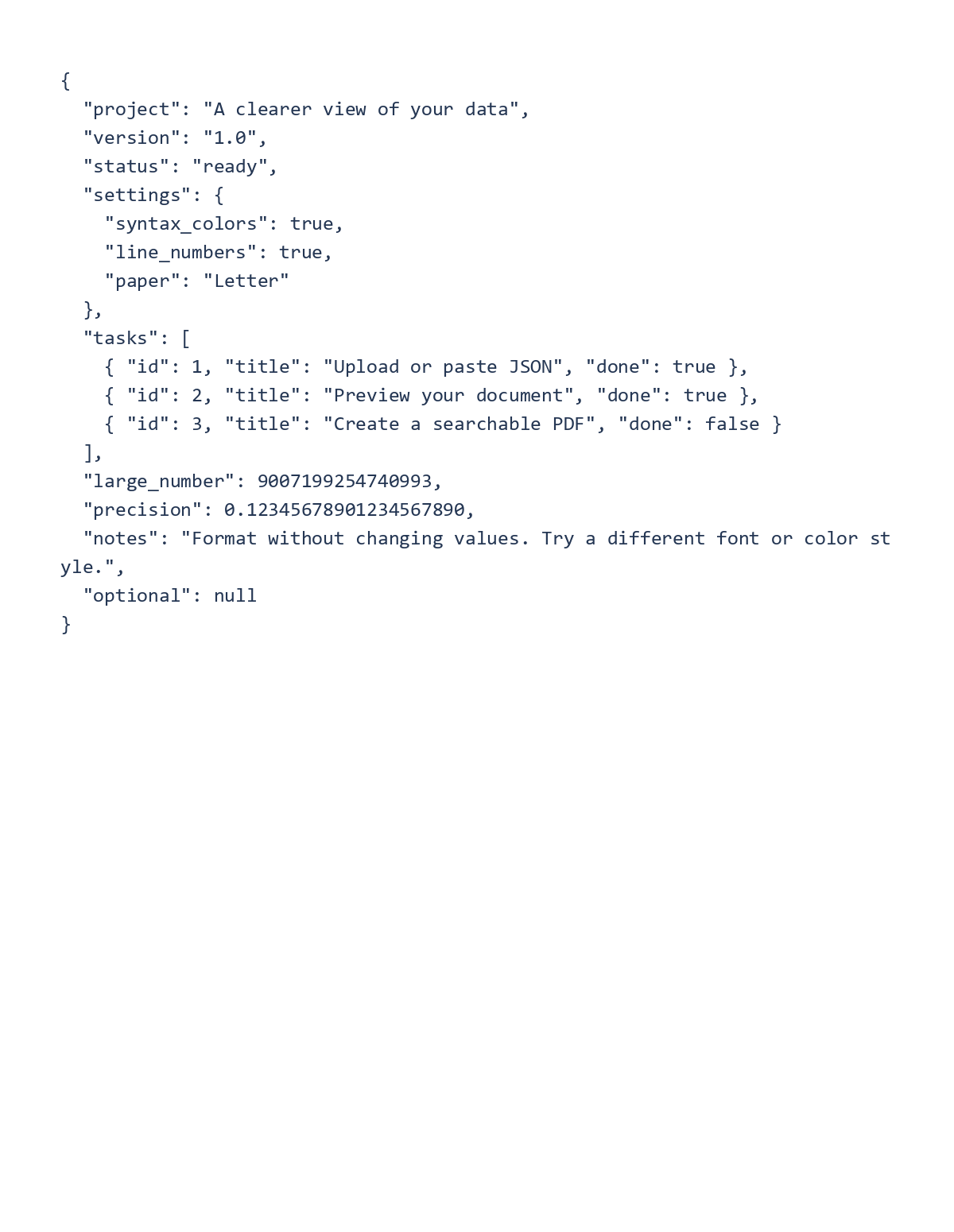
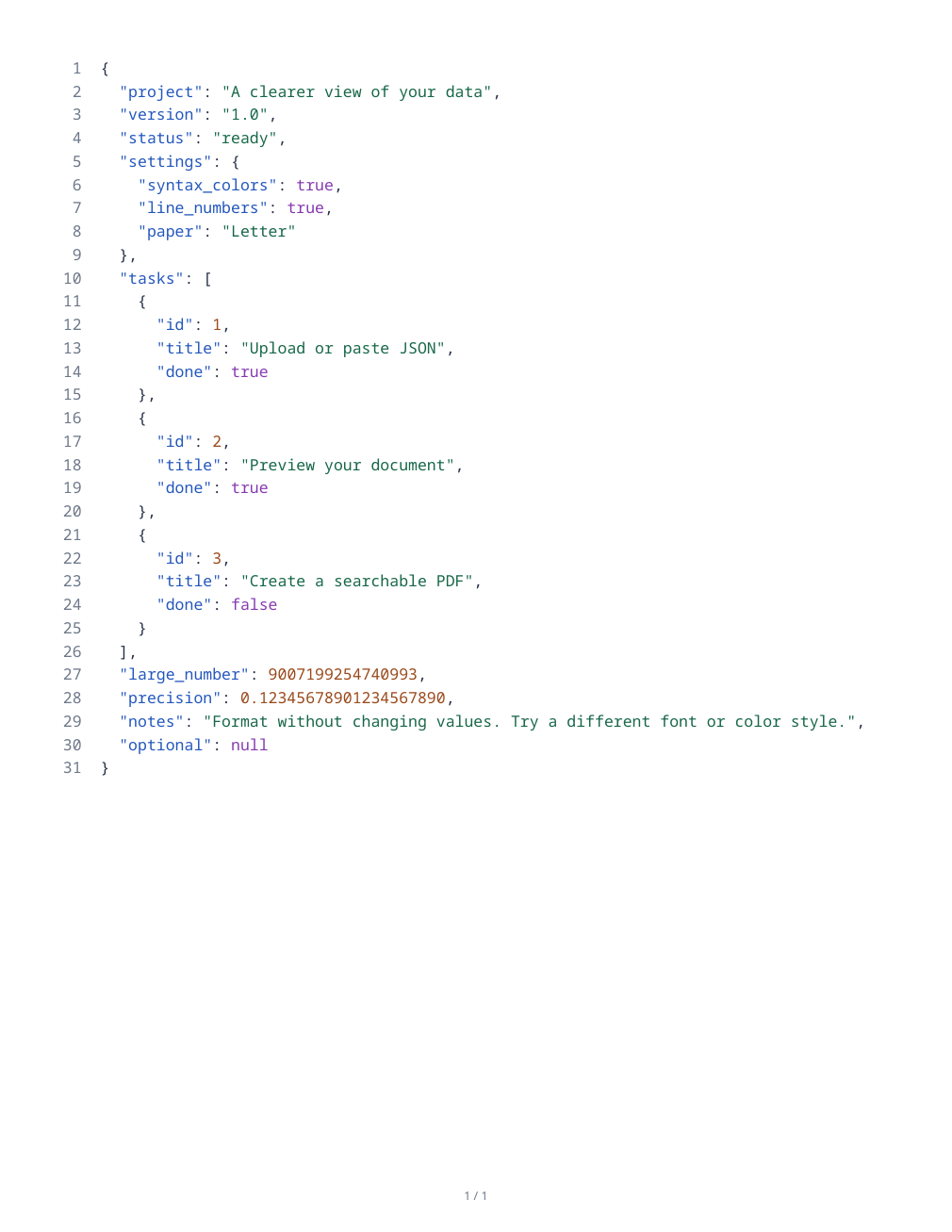

Open JSON to PDF to print structured source as a readable document. The result is a source listing; it is not a spreadsheet or an automatically designed report.
Open and validate the source
Upload a JSON file or paste the source into the editor. Review any validation message and use the reported error location to fix malformed content before exporting.
Check quotation marks, commas and brackets. The editor can flag duplicate keys; decide whether they are intentional in your source.
Choose formatting and paper
Keep Formatted layout with two-space indentation for a readable listing, or choose As written when the original layout matters. Formatting changes layout whitespace rather than turning values into a new data model.
The initial paper is Letter portrait with half-inch margins and 10-point text. Keep wrapping enabled for long lines, choose syntax colors or a monochrome style and review the paginated preview.
Export and verify the listing
Choose the export action and open the downloaded PDF. Compare representative values, Unicode text and the final record with the source. Check for clipped lines or unexpected page breaks.
Retain the original source file for software that needs structured data. A PDF listing is a human-readable copy and does not replace the machine-readable file.
Common questions
Can long numbers lose digits during formatting?
The formatter works with source tokens rather than converting numbers to floating-point values. Still check important identifiers and numbers in the saved document.
Can I keep the original source layout?
Choose As written and review line wrapping. The paper width still affects how long lines fit on the PDF page.
Try it with your document
Review the result, then save the version you need.