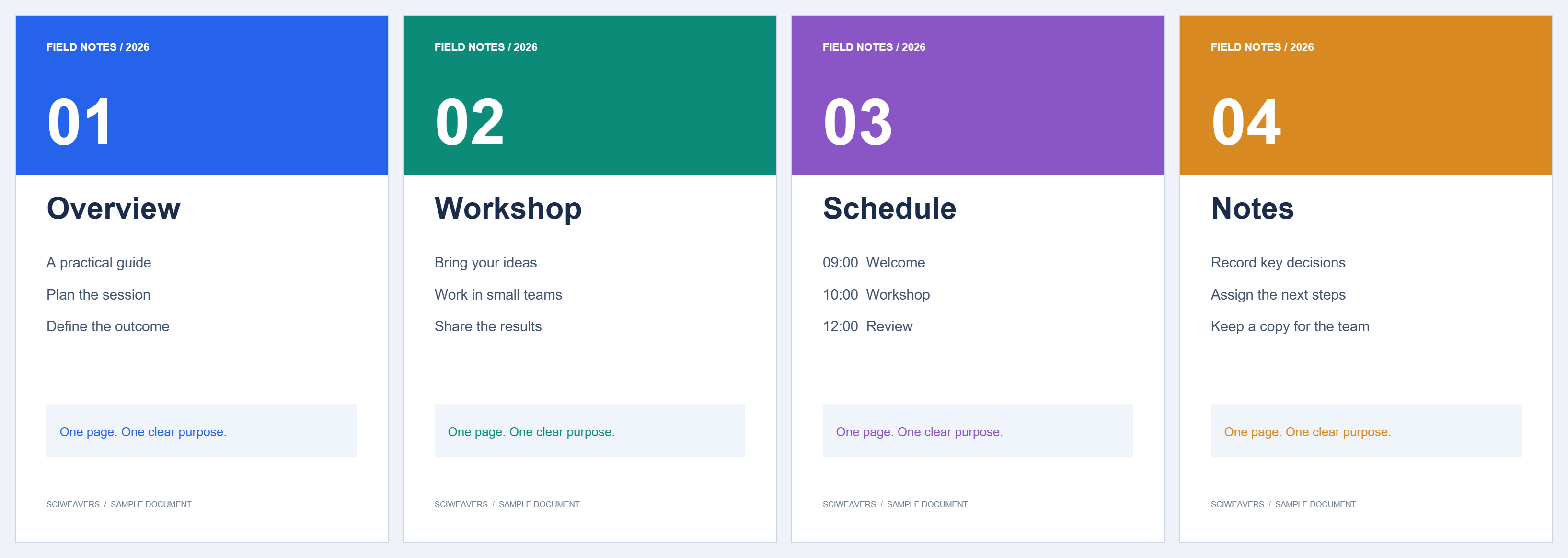
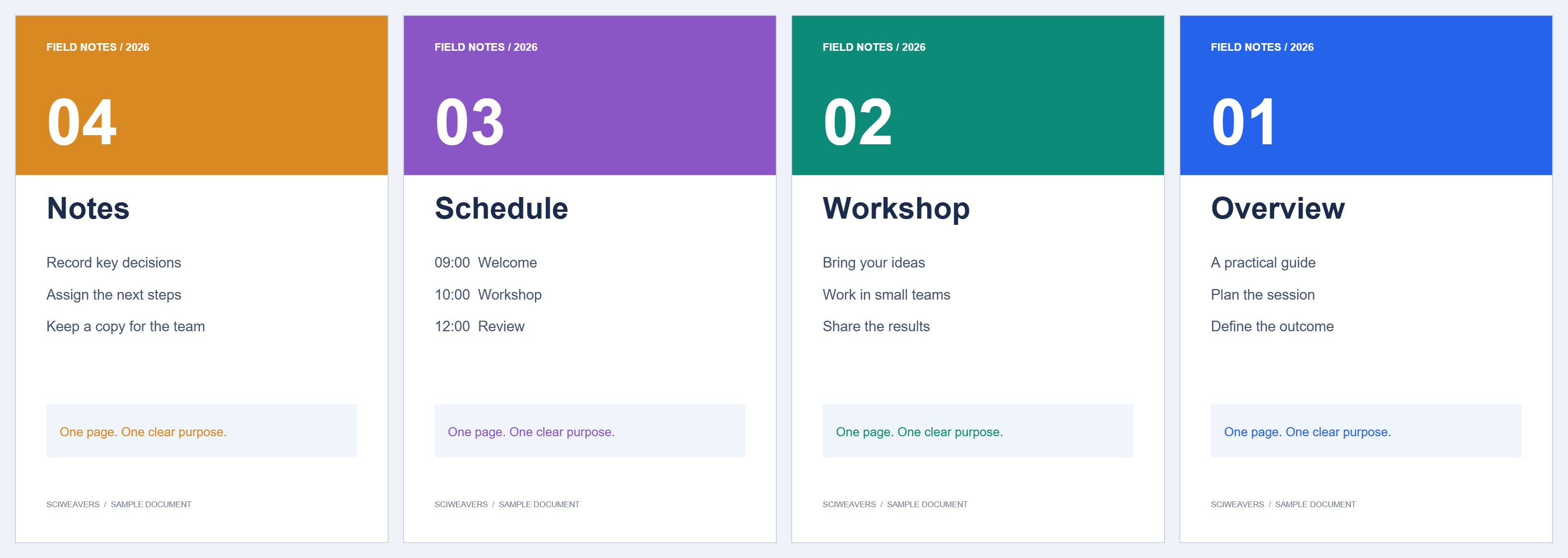

Use Reverse PDF when an entire document is in the opposite order. The example changes 1, 2, 3, 4 to 4, 3, 2, 1 in one operation.
Choose the document
Open the tool and choose your PDF. Use the thumbnails and preview to check whether the whole sequence is reversed. This is common when a scanner feeds a stack from the opposite end.
Confirm that reversal is the right operation
There is no range to enter: the last page becomes the first, the next-to-last becomes the second, and so on. Page orientation is unchanged.
Our four-page file starts with Overview and ends with Notes. The output must start with Notes and end with Overview. If only a few pages are misplaced, use Organize PDF instead.
Create and inspect the reversed PDF
Choose Start and download the result. Open it and check the first page, last page and a page in the middle. Confirm the page count matches the source.
In our example the output contains four pages, with text on each page matching the corresponding source page in reverse order.
Common questions
Will any pages be removed?
No. Every page is kept, with the complete sequence reversed.
Does running it twice restore the original order?
Yes. Reversing an already reversed sequence restores its page order. Save separate copies so the intended version is easy to identify.
Try it with your document
Review the result, then save the version you need.