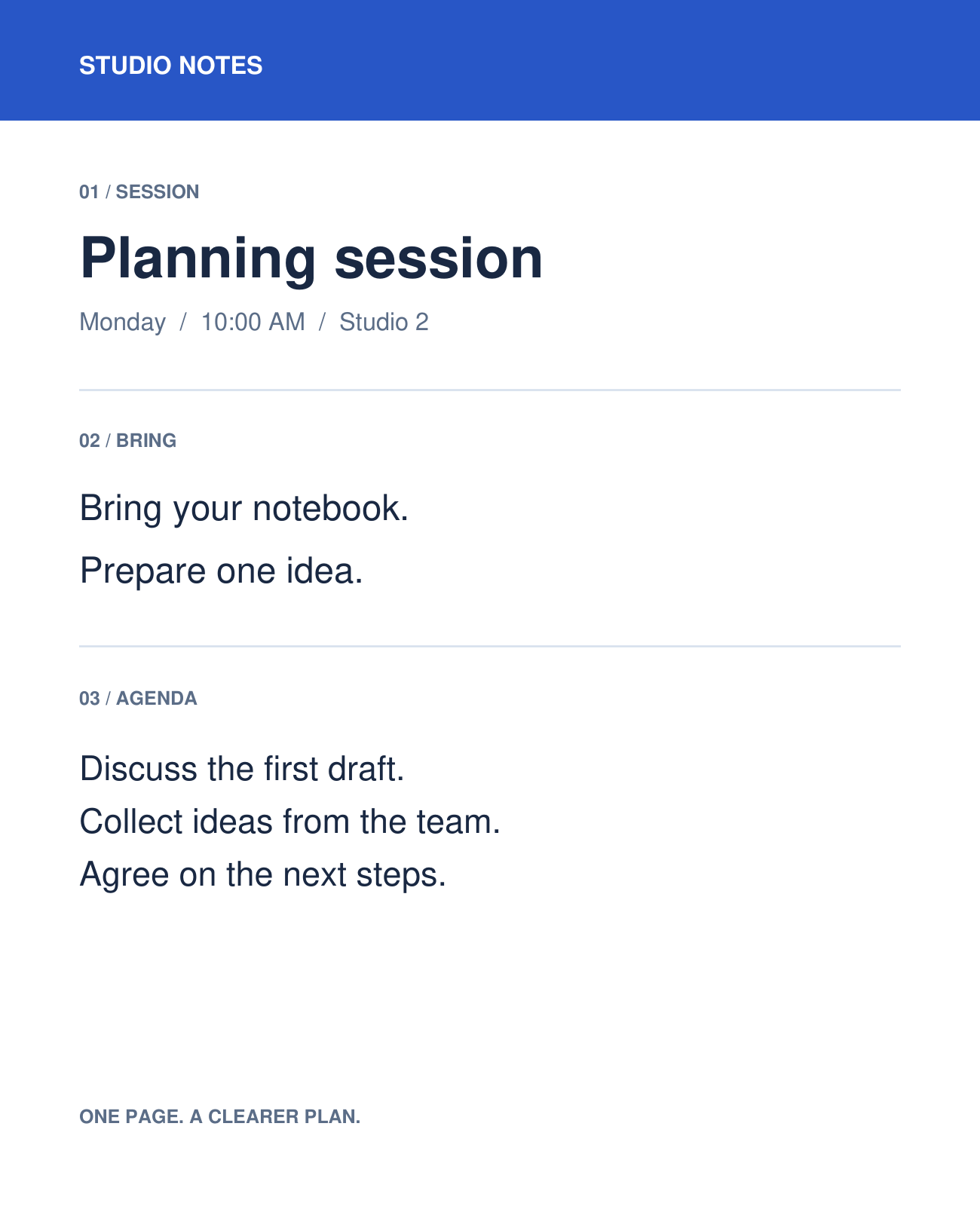

Open Compare PDF and add the original and updated versions. The tool prepares visual differences and selectable-text changes automatically before opening the editor; you can then review and download a report. Our example compares a workshop agenda with its edited version.
Put each PDF in the correct slot
Add exactly two PDFs. Check that the older version is in Original and the revised version is in Updated; swap them if necessary.
Each file can contain up to 750 pages and be at most 25 MB. After both files load, wait for the preparation dialog to finish. The editor opens with PDF pages, Text changes and Visual changes available. For image-only documents, it opens Visual changes only.
Explore the visual changes
Use Difference to find colored changes, Overlay to inspect both versions together, and Swipe to reveal the original on the left and update on the right. Swipe outlines each changed region in red and teal.
Move through changed regions with the arrows, or switch to PDF pages for separate source previews. Small scan shifts and rendering differences can also appear as changes.
Analyze text and download a report
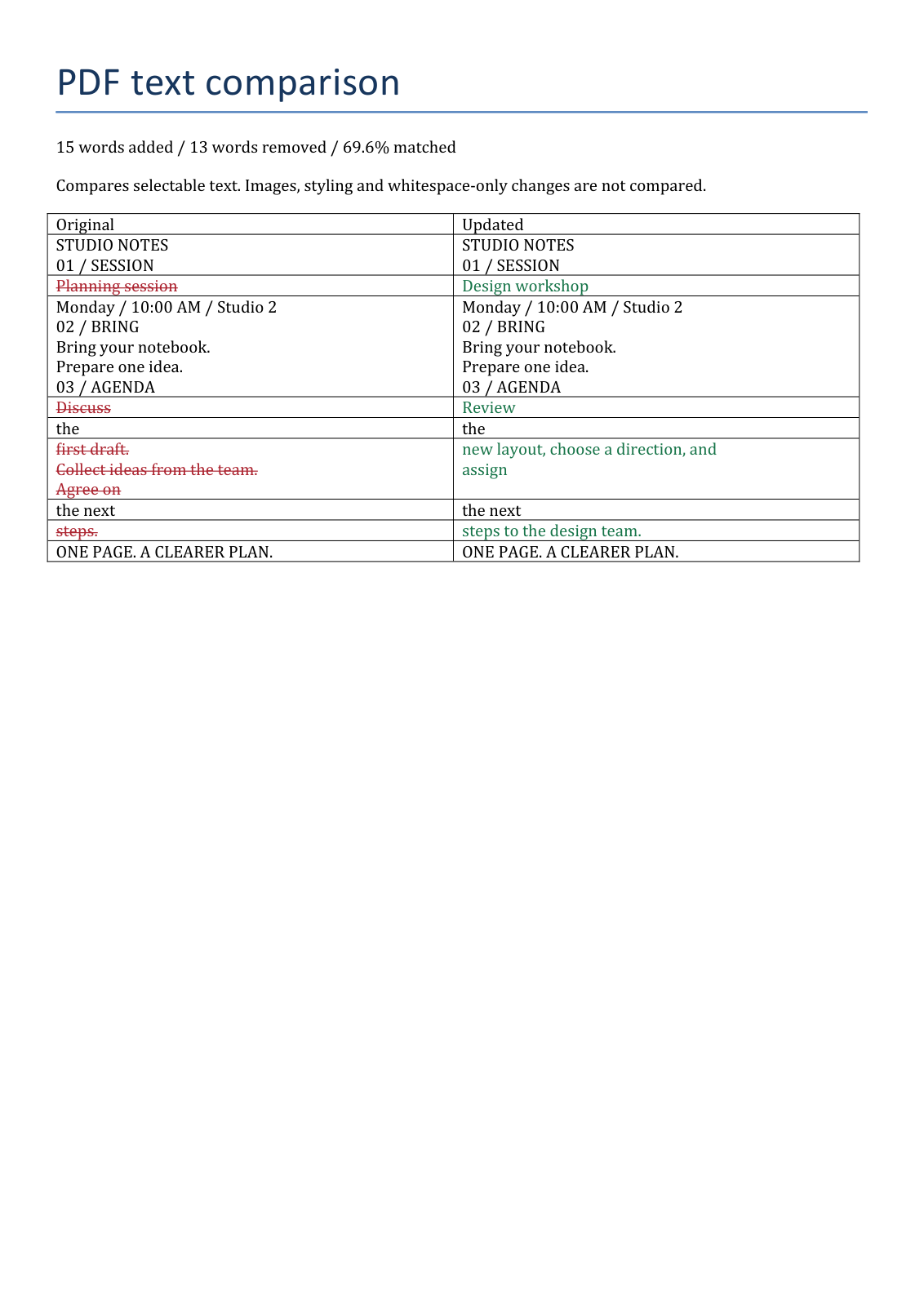
Open Text changes to review the automatically prepared additions and removals. Search the change list and jump to highlighted words in the source page previews. In Settings, choose PDF, Word (DOCX) or HTML for the report; changes to report settings prepare an updated report.
Choose Generate report to open the download screen, then save the prepared report in your selected format. In our report, “Planning session” changes to “Design workshop” and the agenda paragraph is rewritten. Open the saved report before sharing it.
Common questions
Can I compare two scanned PDFs?
Yes, in the visual tab. For a text report, first run PDF OCR on image-only files.
Does a high match percentage mean the files are interchangeable?
No. Review the visual differences and the text change list; a small wording or image change can matter.
Try it with your document
Review the result, then save the version you need.