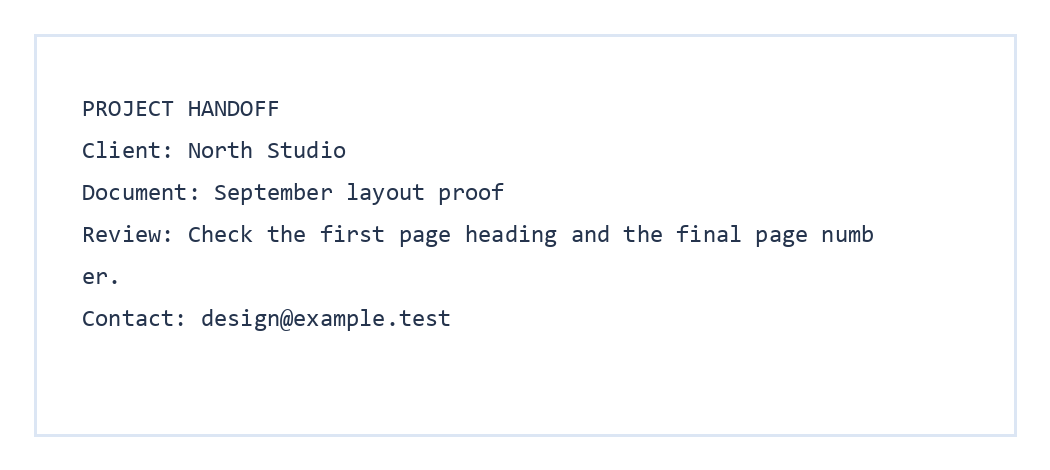

Use Extract PDF Attachments when a PDF carries source files or companion notes. Our example PDF contains one embedded handoff-note.txt file. The real download is a ZIP with that same text file and its original content.
Open a PDF that contains embedded files
Open Extract PDF Attachments and choose the PDF. The file list shows embedded files the tool found inside the document. An ordinary hyperlink on a PDF page is not an embedded attachment.
Our project handoff PDF has one embedded text note, so its filename appears in the selection list.
Choose what to save
Select the attachments to include in your ZIP download.
For this example, we leave handoff-note.txt selected.
Download and inspect the ZIP
Choose Start, then Download. Open the ZIP and confirm the expected files are present. Our result contains handoff-note.txt with its project details.
The extraction happens in your browser. Take care when opening attachments from an unknown sender, just as you would with files received separately.
Common questions
Will extraction remove files from the PDF?
No. It downloads selected copies in a ZIP and leaves the original PDF untouched.
Can I choose only one of several attachments?
Yes. Uncheck the files you do not want before starting the ZIP export.
Why is the attachment list empty?
The PDF may have no embedded files. Links and visible page images are different from file attachments.
Save the files inside your PDF.
Check the list, choose what you need and download one ZIP.