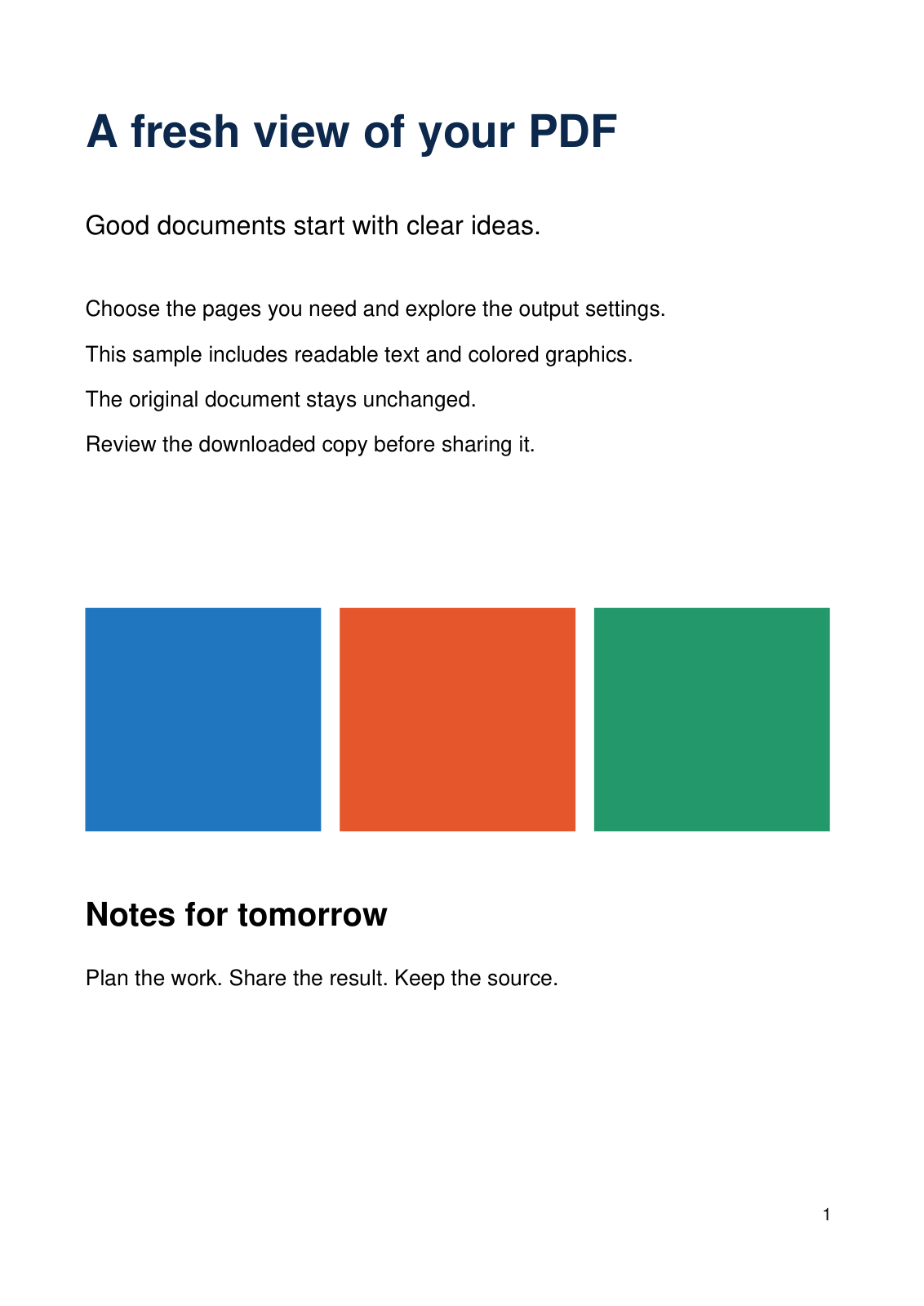
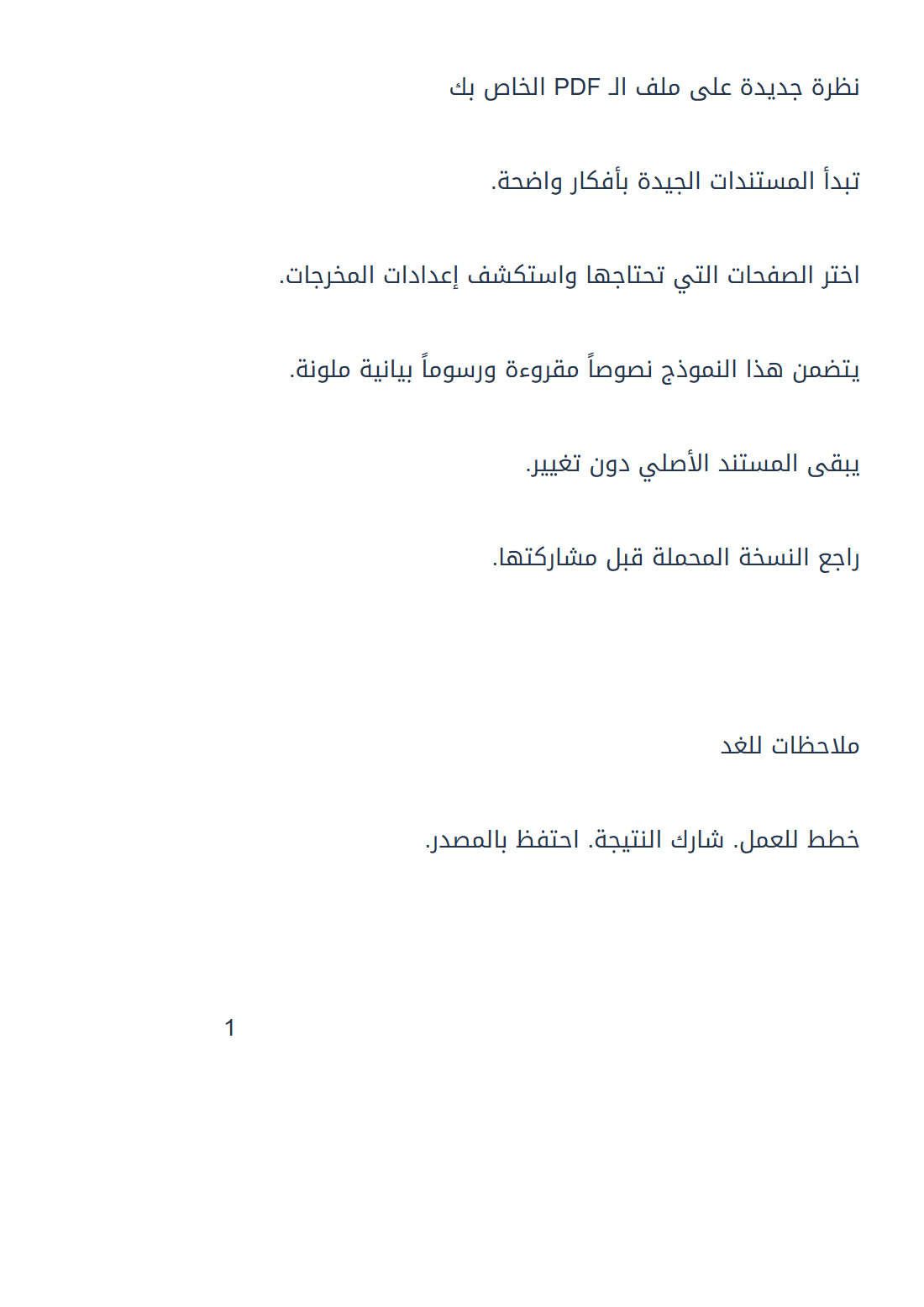

Open Translate PDF and choose a target language. Our example translates the first page of a two-page English PDF into Arabic and downloads the text.
Select the page or passage
Load the PDF and navigate to the needed page. Use the full page or adjust the selection rectangle around a passage. The example uses the whole first page.
Each translation action processes one page or selected area. Other pages need separate actions; the whole uploaded document is not translated automatically.
Choose the target and extraction method
Set Translate into to Arabic. Leave Force OCR unchecked for this source, which already has usable text.
The tool uses existing text when suitable and recognizes scanned content when needed. Recognition language controls OCR, not the target language. Enable Force OCR if the current text layer is unreliable and you want fresh recognition.
Translate, compare and save
Choose Start and complete the verification checkbox. Compare the source and translation panels. The Arabic example shown here is the real downloaded result.
Edit the translation before copying or downloading TXT. If a passage exceeds the tool’s 12,000-character limit, select a smaller region. Keep the original PDF separately.
Refine the translation with Smart edit
In the translated-text panel, choose Smart edit. Select a phrase for a focused change, or leave nothing selected to work on the whole translation. Choose Summarize text, Paraphrase text, Fix grammar or Suggest a title, then choose Apply. The title action adds a heading without replacing the body. The editor also offers headings, lists, accent removal and number normalization.
Compare the revised wording with the source; an AI suggestion can change meaning or omit details. Choose Apply Changes to put the editor’s plain text back into the translation panel. Copy and the main TXT download then use that text. Formatted copy downloads a separate styled HTML file. Neither action writes changes into the original PDF.
Common questions
Does changing the target language translate automatically?
No. Choose the settings and explicitly start translation, after checking the selected page or region.
What does Smart edit save?
Apply Changes updates the plain-text translation used by Copy and TXT download. Formatted copy saves a separate HTML file with editor styling. The source PDF stays unchanged.
Try it with your document
Review the result, then save the version you need.