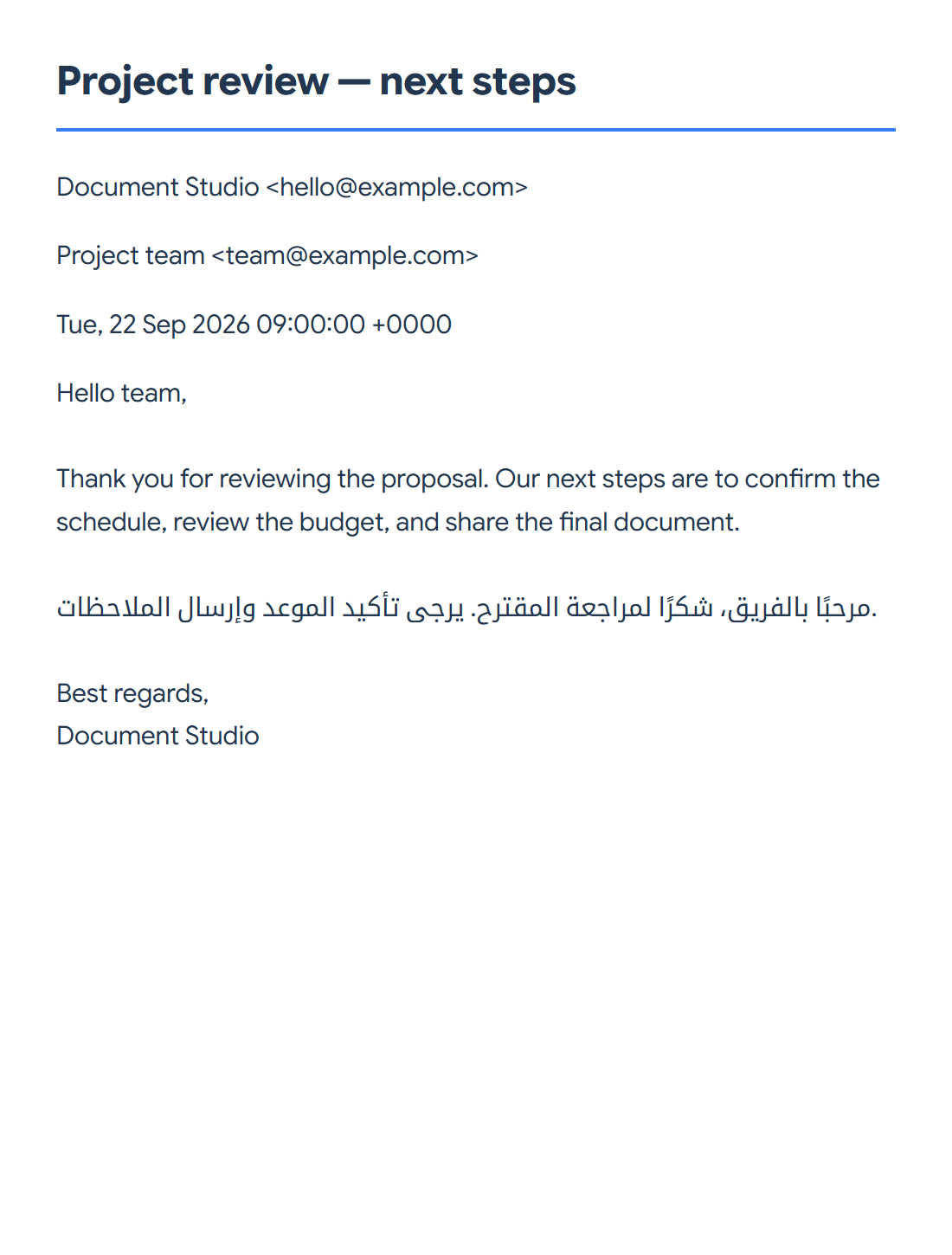
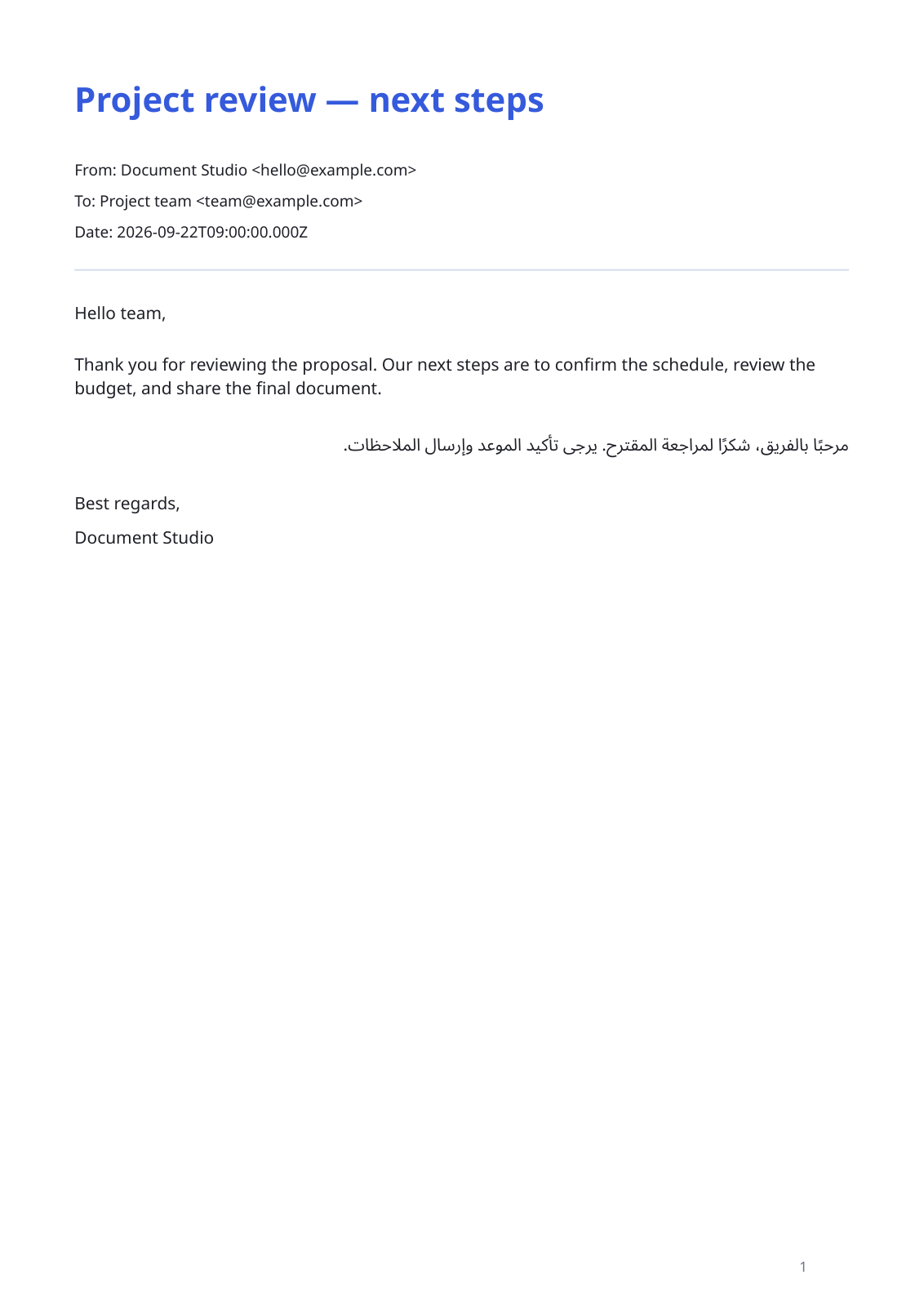

Open Email to PDF and add saved EML messages. The tool builds a text-based PDF from the message content. Our example turns a project-review email with English and Arabic text into one A4 page.
Save and add the email
Export the message from your email application as an EML file, then add it to the tool. An EML file contains message headers and body content; renaming another file to .eml does not convert it.
If you add several messages, review their order in the message list. Move or remove entries before generating the combined PDF. Each message starts on a new page.
Set the paper and included details
Keep A4 paper and a text size of 11 to reproduce the example. Change the paper or increase the text size if readability matters more than a compact page count.
Keep Include sender and recipients enabled when those details are useful. List attachment names adds a list of names when attachments exist; it does not include the attachment files or their contents.
Save and review the PDF
Choose Start and open the PDF. Compare the subject, sender, recipients and message text with the source. Check wrapping and mixed-language text, especially on long messages.
Our source message, “Project review — next steps”, fits on one page. Longer messages can continue onto additional pages, while the next email begins on a fresh page.
Common questions
Are attached documents included inside the PDF?
The optional attachment list contains filenames. Convert and keep the attachment files separately if their contents are needed.
Can I convert Outlook MSG files here?
This tool accepts EML files. Export the message to EML using an application that supports it before adding it.
Try it with your document
Review the result, then save the version you need.