
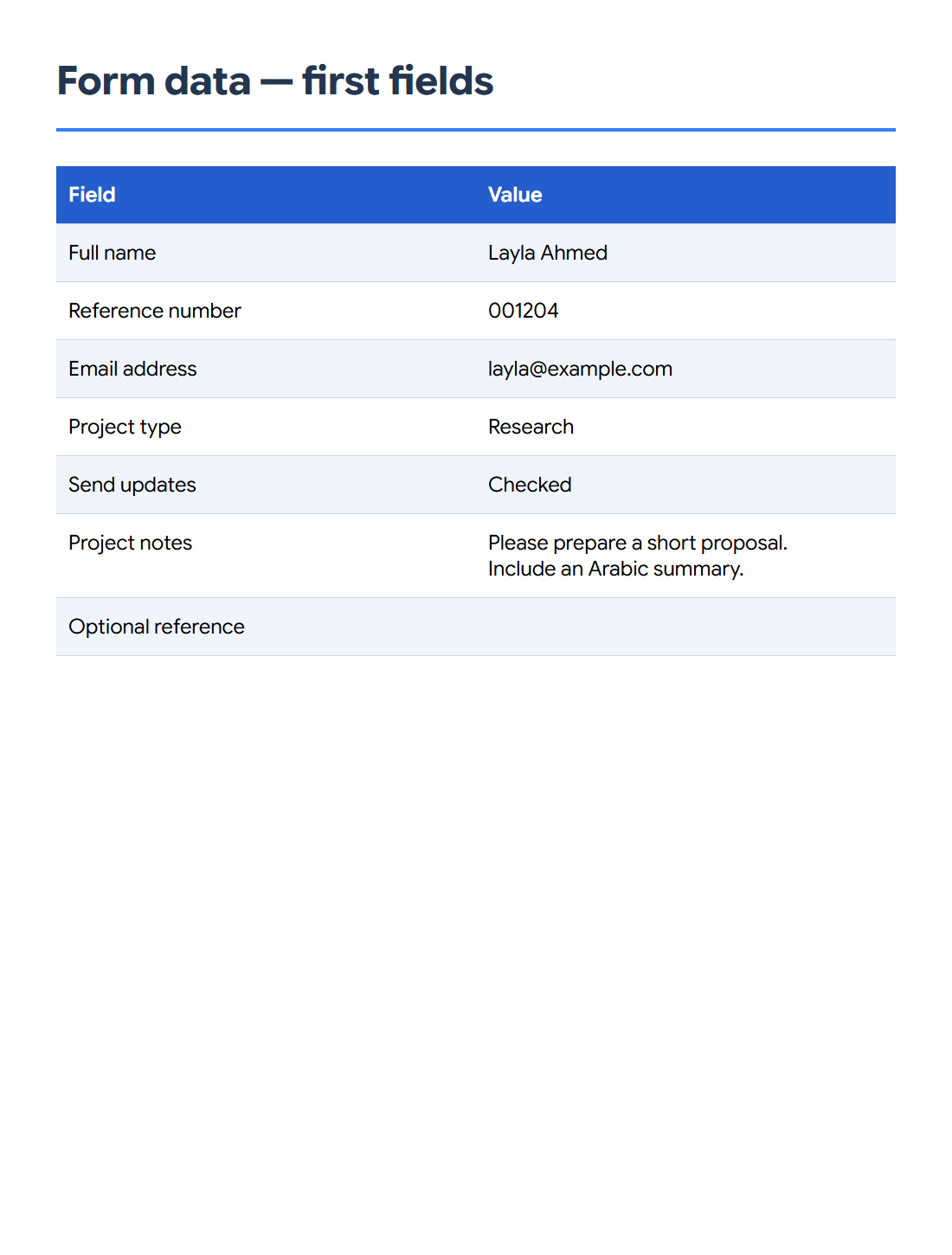

Open PDF Form Data to Excel to read the answers stored in interactive PDF fields. Our completed two-page intake form becomes an Excel workbook containing 12 logical fields, including text, choices and a checkbox.
Save and open the completed form
Save the filled form as a PDF before adding it to the tool. This captures the stored answers; unsaved changes in another PDF reader are not part of the uploaded file.
Check that the source contains actual form fields. A scan of a form, or a flattened page with printed answers, does not contain the same stored field data.
Choose the spreadsheet layout
Choose Fields as rows to put each field on its own row with its value, type, page references and internal field name. Fields as columns instead gives each field a column, with the form’s answers in one data row.
Keep Include empty fields enabled to retain blank entries such as Optional reference. Keep Use readable choice labels enabled when dropdown and list labels are more useful than their stored export values.
Export and check the answers
Select XLSX under Export format, then choose Export form data. Open the workbook and compare a few text fields, choice fields and checkbox answers with the source. Our output has a Form data sheet with 12 fields.
Check identifiers such as 001204, multiline answers and Arabic text. The same logical field can appear in several places on a form while contributing one answer. For CSV, choose text column types when importing identifiers into a spreadsheet.
Common questions
Can it extract answers from a scanned form?
A scan has pixels rather than interactive field values. Use PDF OCR to recognize text, then choose a workflow suited to that document.
Why is an empty field included?
The Include empty fields option preserves the form’s structure. Disable it if you want to omit fields that have no stored answer.
Try it with your document
Review the result, then save the version you need.