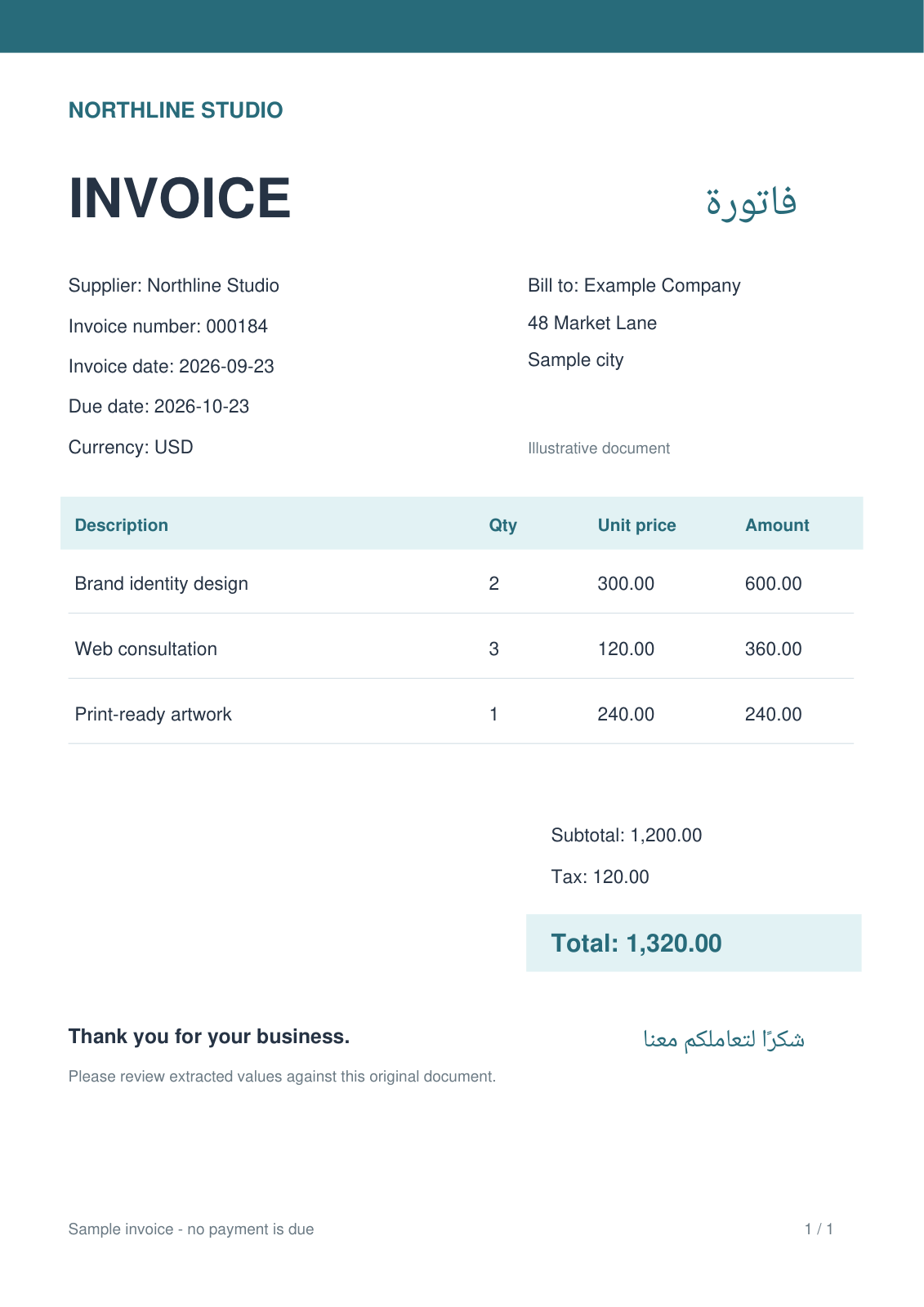
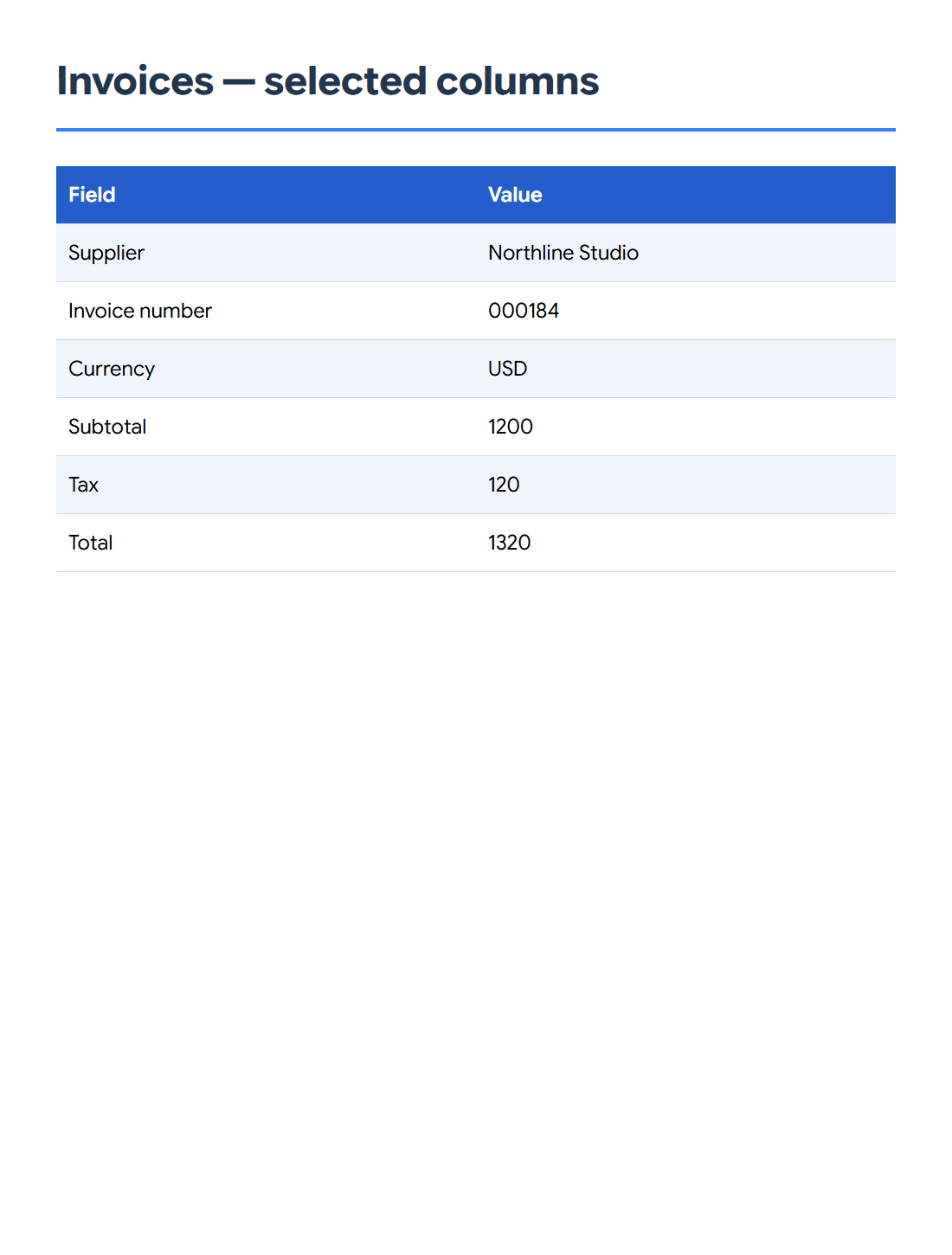

Use Invoice PDF to Excel to extract invoice details and line items, then check the values before downloading. Our sample produces two worksheets: Invoices and Line items, with invoice number 000184 and a total of 1,320.00 USD.
Open the invoice and choose its grouping
Add a PDF with selectable invoice text. Choose One invoice across all pages when several pages belong to the same invoice; use the per-page option when each page is a separate invoice.
Set Number format in the invoice to match the source. Our example uses 1,234.56, with a decimal point and comma thousands separator. This affects how amounts are interpreted.
Extract and review the detected data
Choose Extract data and review the supplier, invoice number, dates, currency, totals and line items. Correct missing or incorrectly detected values in the editor before exporting.
The sample has three item amounts: 600.00, 360.00 and 240.00. Its subtotal is 1,200.00, tax is 120.00 and total is 1,320.00 USD. Keep the invoice number 000184 as an identifier with its leading zeros.
Download and inspect the workbook
Select XLSX under Download format and choose Start. Open both the Invoices and Line items worksheets and confirm that each item is associated with the right invoice.
For CSV, choose whether to export invoice records or line items. If you change the grouping after extraction, extract again and review the new records; replacing results can overwrite your manual edits.
Common questions
Does the tool recalculate my invoice?
It extracts and lets you review the recorded amounts. Check quantities, prices, taxes and totals against the original rather than assuming the detected values are correct.
Why are there two Excel worksheets?
Invoices contains one record per invoice, while Line items contains its individual charges with a record reference. This keeps document-level details separate from item rows.
Try it with your document
Review the result, then save the version you need.