Bookkeeping teams
Prepare invoice records
Move invoice numbers, dates and totals into a spreadsheet, then review them before importing into your workflow.
From invoice to spreadsheet, with every detail yours to review.
Click Extract data to read the PDF. Then review the invoice details and line items here.
Review all extracted values. Missing or ambiguous information stays blank; totals are not recalculated.
| Description | Quantity | Unit price | Amount | Actions |
|---|
No line items recognized. You can add rows manually.
Use Preview to check the source and Review to correct the extracted values.
Open the spreadsheet and review it before using the figures.
Compare the exported values with the original invoice before using them for accounting or payments.
Choose one PDF with selectable text, or try the bilingual sample.
Click Extract data, check the fields and line items, and correct or add values.
Choose your output format and click Start. Excel includes an Invoices sheet and a Line items sheet.
Invoice PDF to Excel extracts common invoice details and line items from selectable PDFs. Review and correct the values, then export an Excel workbook with separate invoice and item sheets, or a CSV file.
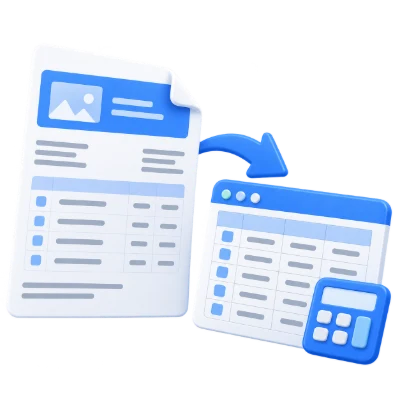
Move invoice numbers, dates and totals into a spreadsheet, then review them before importing into your workflow.
Collect quantities, prices and line amounts in a separate sheet for sorting and checking.
Start with extracted values and fill any gaps, keeping source filenames and page references.
Read common invoice labels and review the suggested values.
The tool looks for supplier, invoice number, invoice date, due date, currency, subtotal, tax and total labels in selectable English or Arabic text. It does not understand every invoice design; unfamiliar labels and missing values need manual entry.
Invoice numbers and dates remain text so leading zeros and date formatting are preserved. Currency is copied from a label or a single recognized currency code. An ambiguous currency symbol alone does not identify the currency.
Edit descriptions, quantities, unit prices and amounts.
Rows beneath recognizable Description, Quantity, Unit price and Amount headers are grouped using their positions on the PDF page. At minimum, a description and amount column are needed. Tables with unusual headers, rotated text, merged cells or complex layouts may require manual correction.
Review every row, add missing items or remove an unwanted row. Missing quantities and prices are left blank. Totals are copied from the source and are not recalculated from the items.
Keep a multipage invoice together, or make one record per page.
One invoice across all pages is the default. Use it when your file contains one invoice with continuation pages. Choose One invoice per page only when each page is a separate invoice.
This tool does not automatically discover the boundaries of variable-length invoices. Split mixed batches first, then process an invoice at a time. Changing grouping requires extraction again; replacing manual edits asks for confirmation.
Download an Excel workbook with two filterable sheets.
Invoices contains one row per invoice with the reviewed details, source page numbers and filename. Line items contains one row per item, linked by the record number and invoice number. Headers are frozen and columns can be filtered.
Choose the decimal convention used by the invoice. Recognized quantities and amounts become numeric cells. Values that cannot be parsed safely stay text and are flagged in the review. Currency conversion and accounting calculations are not performed.
If you click Start before extracting, it reads the PDF and creates the download in one step. Use Extract data first when you want to review or correct values before export.
Export a chosen data sheet as UTF-8 CSV or keep both in Excel.
English and correctly encoded Arabic PDF text can be read. The Arabic interface exports Arabic column headings and right-to-left Excel worksheets. Original field values keep their language.
CSV exports either invoice summaries or line items. It includes a UTF-8 byte-order mark. Formula-like input is neutralized in CSV and saved as literal text in Excel; no macros or external links are added.
Preview the PDF, review the data and export locally.
One PDF up to 100 MB and 750 pages is accepted. Extraction is limited to 2 million source text characters and 5,000 line items, with up to 2,000 characters in an editable value.
Image-only scans need a searchable OCR layer first. Pages without text are reported in mixed documents. This tool does not send the invoice to AI services or upload the document for extraction.
Open one PDF up to 100 MB and 750 pages. Additional output, memory and processing limits can apply to complex documents.
Processing takes place on your device without uploading the document. Download your result before closing the page; keep the original separately.
Know what to expect before you start.
Private processingOpen the PDF and click Extract data. Review the fields and line items, make any corrections, then choose Excel and click Start. If you click Start before extracting, it reads the PDF and creates the download in one step. Use Extract data first when you want to review or correct values before export.
It needs selectable text. Use PDF OCR to add a searchable text layer first. Check OCR errors before relying on any extracted values.
No. It uses common English and Arabic field labels and recognizable item-table headers. Unusual or complex layouts need corrections or manual rows in Review.
Yes. Keep One invoice across all pages selected. For a file with one separate invoice on each page, choose One invoice per page before extraction.
The Invoices sheet has one row per reviewed invoice. The Line items sheet has item descriptions, quantities, unit prices and amounts, with record and source-page references.
Values recognized using your selected number format are exported as numbers. Unrecognized values remain text. Invoice IDs and dates always remain text to preserve their original formatting.
No. It copies values from the invoice and lets you correct them. It does not calculate tax, exchange rates or invoice totals.
Yes, for correctly encoded selectable Arabic text and common Arabic labels. The Arabic interface exports Arabic headings and right-to-left Excel worksheets.
No. PDF reading, review and spreadsheet export happen locally in your browser. The app accepts one PDF up to 100 MB and 750 pages.
Yes. Back returns to the reviewed data. Extracting again asks before replacing manual edits. Start over clears the current document.